
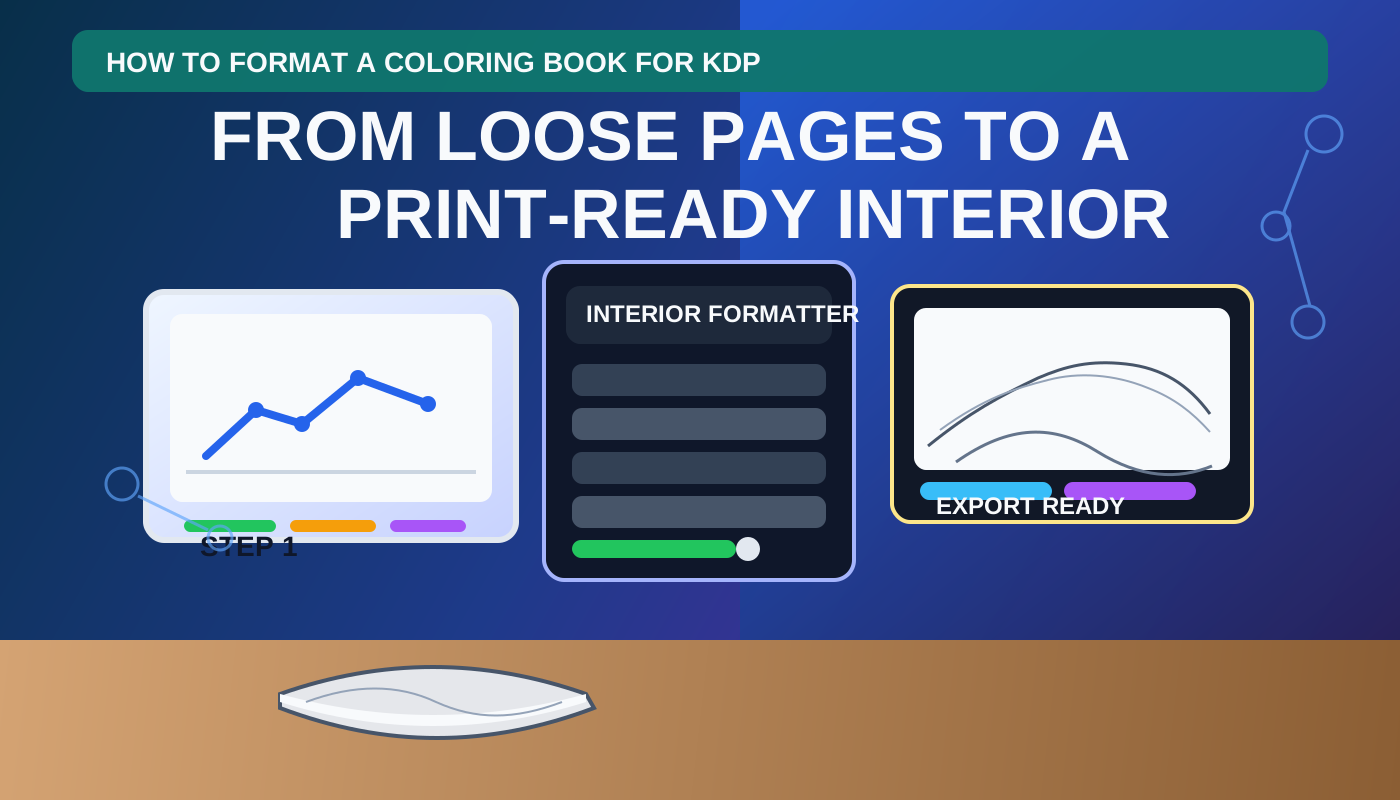
How to Format a Coloring Book for KDP: From Loose Pages to a Print-Ready Interior
If you are trying to format a coloring book for KDP, the hard part is usually not making one more page.
The hard part is turning a folder of PNGs, JPGs, or mixed PDFs into one clean interior file that behaves like a real book.
That means:
- the trim size is consistent
- the page order makes sense
- blank backs are inserted when needed
- line art prints cleanly
- the export is one print-ready interior PDF
This is where many creators lose time. They keep generating more pages when the real bottleneck is formatting.
Quick answer
If your page art already exists, start with production decisions, not more prompts:
- confirm trim size and target page count
- clean and order the page set
- insert blank backs if the book is single-sided
- export one interior PDF
- only then finish the cover wrap
In BookCoversLab, that usually means starting in AI Coloring Pages to KDP PDF, not in another generator. If you have not planned the book structure yet, use the AI Coloring Book Generator first so your page count and trim choices do not drift later.
Why coloring book formatting breaks so often
Formatting problems usually show up because the “book” is still being treated like a folder of assets.
Common failure points:
- pages were generated at different dimensions
- the trim size was never locked
- marker-friendly books forgot blank backs
- some pages still contain muddy grayscale or weak contour weight
- page order feels random instead of intentional
- the creator finishes the cover before the interior PDF is stable
That is why formatting is a production step, not a cosmetic one.
Step 1: lock trim size and page count before editing the interior
Before you clean anything, decide what the book is.
If the trim is still floating, every page-level formatting choice becomes fragile. A coloring book that is headed for 8.5 × 11 behaves differently from one headed for a smaller trim. If you need help choosing the physical format first, review KDP Trim Sizes. If the book structure itself is still fluid, open the AI Coloring Book Generator and set the audience, trim direction, and page count before you move into export work.
This one decision affects:
- margin feel
- whitespace around line art
- how many pages belong in the final PDF
- the future spine width and cover wrap
If the main uncertainty is how much room the page art really needs, review Coloring Book Bleed and Margins for KDP before you keep nudging individual pages by eye.
Step 2: import the page set and normalize the sequence
Once trim is fixed, import the page set into AI Coloring Pages to KDP PDF.
At this stage, your goal is not “design.” It is consistency:
- remove duplicate or weak pages
- put similar complexity levels in a deliberate order
- front-load the most immediately satisfying pages
- avoid sudden jumps in style or difficulty
A strong coloring book feels curated, not random. Even if every page is technically usable, the book still needs pacing.
Step 3: add blank backs for single-sided coloring books
For many coloring books, especially those intended for markers, blank backs are part of the product quality.
Why they matter:
- they reduce bleed-through risk on the reverse side
- they make the book feel cleaner and more intentional
- they protect the experience of coloring one page at a time
This is one reason a real formatting workflow is more valuable than another page generator. In AI Coloring Pages to KDP PDF, blank-back handling belongs to the export path, not to a last-minute patch in another editor.
If you are still deciding whether blank backs are worth the page-count tradeoff, read Do Coloring Books Need Blank Backs? before you lock the final interior.
Step 4: clean line art before final export
A page can look usable on screen and still print weakly.
Before export, review for:
- fuzzy or muddy line edges
- gray haze that makes coloring less satisfying
- margins that feel cramped after trim
- inconsistent image scale across the book
If the page set still feels unstable, go back to planning in the AI Coloring Book Generator instead of forcing the export. If the pages are fundamentally good and only need cleanup, stay in AI Coloring Pages to KDP PDF and finish the production work there.
Step 5: export one print-ready interior PDF
The real output is not a pile of cleaned images. It is one coherent interior PDF.
That PDF should reflect:
- the final trim choice
- the final page order
- any blank-back logic
- a stable interior sequence that will not keep changing after the cover is started
Only when the interior PDF is stable should you move into the matching wrap with Coloring Book Cover Maker. If you need to verify trim, bleed, and future spine implications before cover work, use the KDP Cover Size Calculator.
The biggest mistake: finishing the cover before the interior is stable
Creators often rush to the cover because it feels more visible and exciting.
But for coloring books, the interior decides:
- the final page count
- the spine width
- whether the back-cover promise matches the inside experience
So the right sequence is:
- plan the book
- format the interior
- build the cover
Not the other way around.
FAQ
What is the fastest way to format a coloring book for KDP?
If the page art already exists, the fastest path is to use a dedicated formatting workflow instead of manually juggling files across multiple editors. That is exactly what AI Coloring Pages to KDP PDF is designed to do.
Do coloring books on KDP need blank backs?
Not in every case, but many creators use them for marker-friendly or single-sided coloring experiences because they protect the reverse side and make the interior feel more intentional.
When should I start the cover?
Start the cover only after the interior page count and trim are stable. Otherwise the wrap keeps changing with every interior revision.
Related Resources
AI Coloring Pages to KDP PDF
Import pages, add blank backs, and export one print-ready interior PDF.
Format the interior
AI Coloring Book Generator
Set the trim, audience, and page-count direction before you finalize the interior.
Plan the book structure
Coloring Book Cover Maker
Build the matching front, spine, and back wrap after the interior is stable.
Build the cover wrap
KDP Cover Size Calculator
Check trim, bleed, and future spine math before the wrap goes final.
Check trim and spine
Best AI Coloring Book Creator in 2026
Compare the planning, formatting, and publishing workflows side by side.
Compare the full workflow
Coloring Book Bleed and Margins for KDP
Decide how much printable breathing room the artwork needs before you export the interior PDF.
Read the bleed guide
Do Coloring Books Need Blank Backs?
Learn when blank backs improve marker-friendly books and when they are worth the extra pages.
Read the blank-back guide
Author

Categories
More Posts
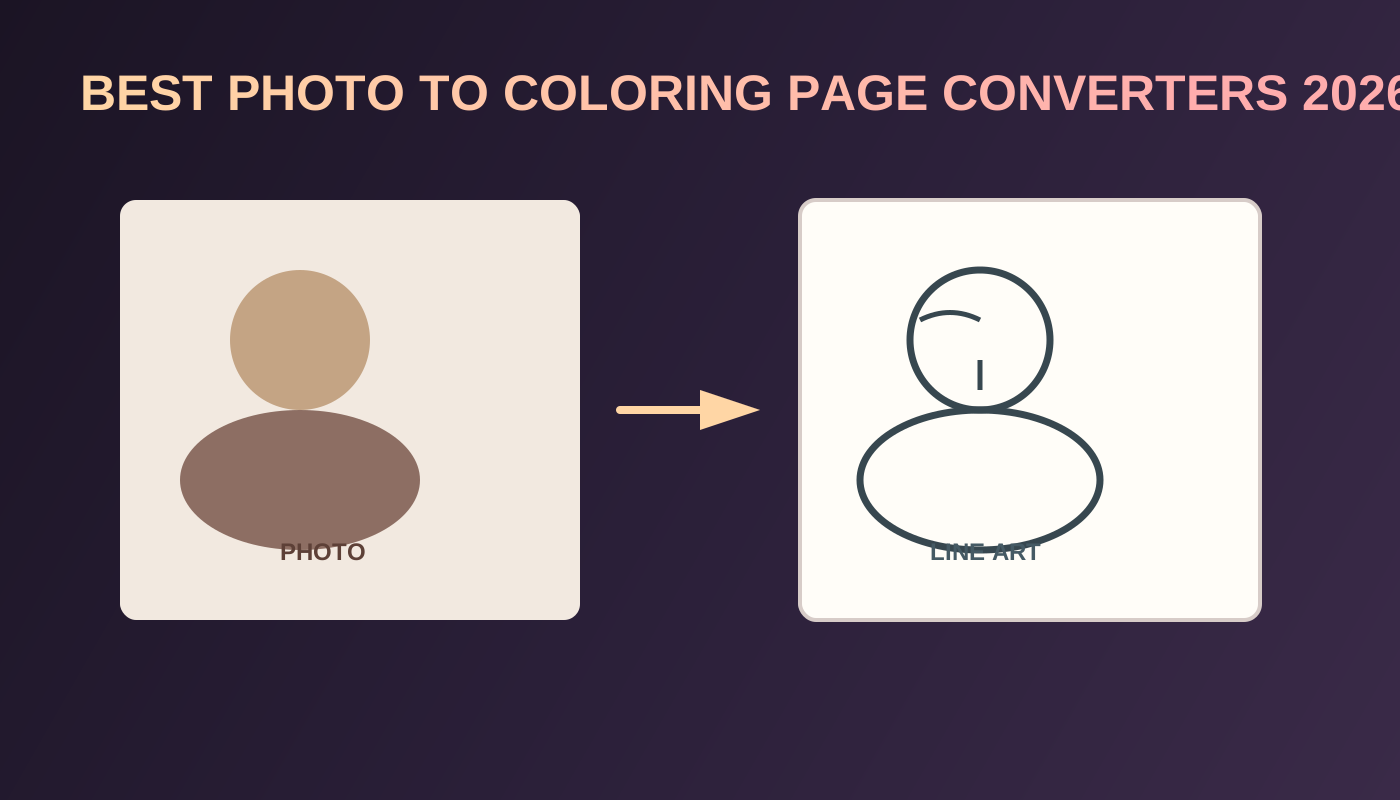
7 Best Photo to Coloring Page Converters in 2026
Compare the best photo to coloring page converters in 2026 for printable line art, pet and family keepers, and the path into a KDP coloring book.
Do Coloring Books Need Blank Backs? When to Add Them for KDP
Learn when coloring books need blank backs for KDP. See why single-sided layouts help marker users, how blank backs affect page count, and when they are worth adding before export.
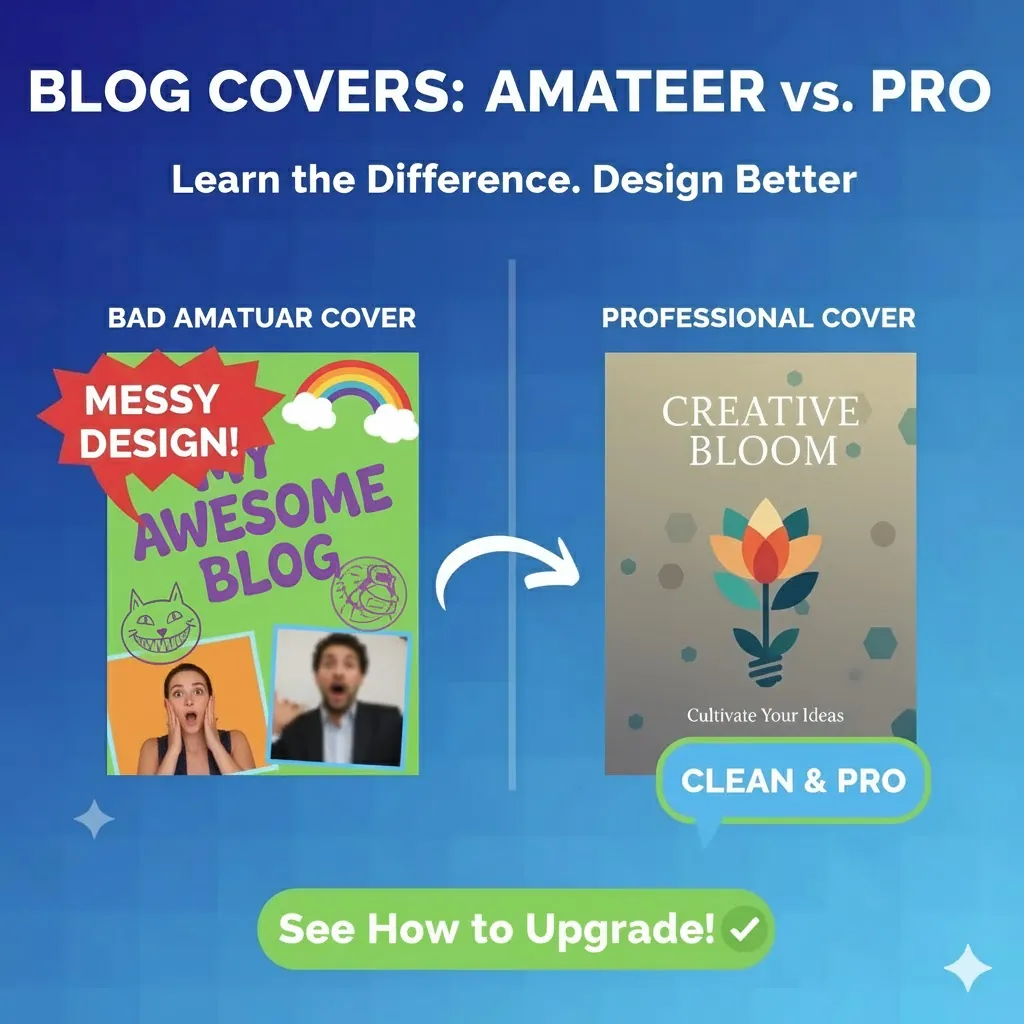
Best Book Cover Software for Self-Publishing Authors (2026)
Compare Canva, Photoshop, BookBrush, and BookCoversLab to find the best book cover software for self-publishing, print-ready KDP files, and faster cover revisions.
Newsletter
Join the community
Subscribe to our newsletter for the latest news and updates