
Quick answer: this fixes small page-count changes
This workflow is for a paperback cover that is visually correct but technically tied to the wrong page count. A common case is a Canva or KDP cover template downloaded for 200 pages, followed by late manuscript edits that make the final interior 203 pages. Because paperback spine width depends on page count and paper type, KDP can reject the upload even though the design still looks almost right.
Use this page-count repair only when the old full-wrap cover is close to the correct size. For larger spine mismatches, follow the BookCoversLab KDP Cover Creator manual and rebuild the front cover, back cover, and spine as separate parts.
| Decision point | What to know |
|---|---|
| Best for | A paperback cover that was built from a KDP or Canva template, but the final page count changed slightly after the interior was edited. |
| Common example | You downloaded or built a 200-page 6 x 9 in paperback template, then the manuscript changed to 203 pages. KDP now says the template size does not match the uploaded file. |
| Not for | A full-wrap AI paperback cover with a very wide spine, such as a 300-page-looking cover for a real 100-page book. In that case, crop the design into front and back images and rebuild the spine separately. |
Why page count changes break paperback cover templates
A KDP paperback cover is not just a front cover. It is one continuous sheet with back cover, spine, front cover, and bleed. The outside width changes whenever the spine width changes, and the spine width changes when page count, paper type, or binding setup changes. That is why a cover made from the wrong KDP template can trigger the official message that the template size and uploaded file do not match.
Amazon KDP's cover template and paperback guidelines are still the source of truth for final upload dimensions. BookCoversLab helps with the repair step: you bring the old wrap into a new KDP-aware canvas, update the page count, fit the image into safe zones, fill any exposed bleed edge, and export the corrected print file.
Step-by-step repair flow
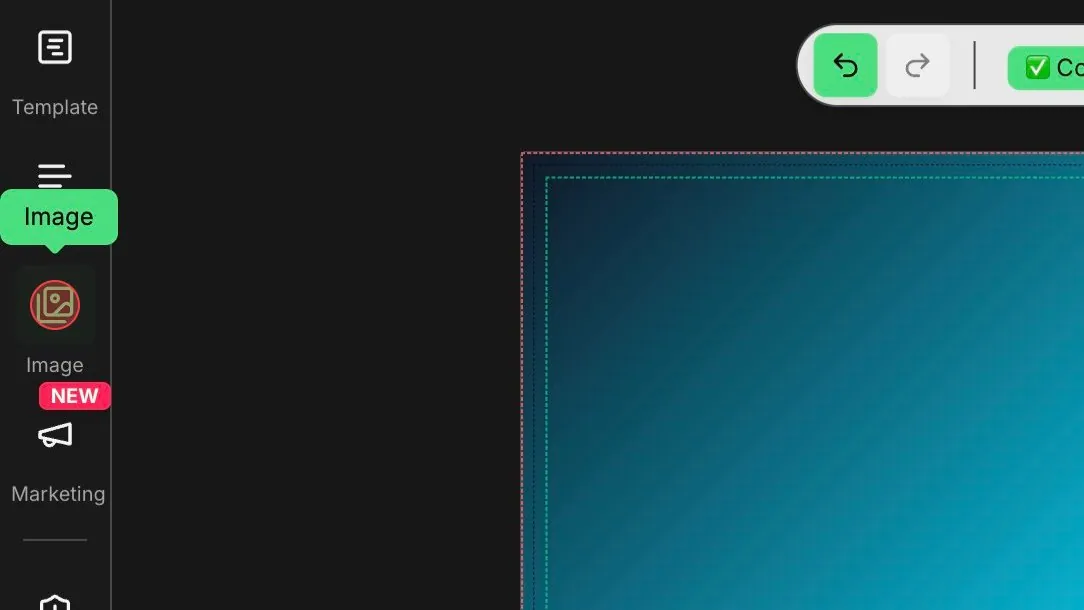
Open the image workflow
Open KDP Cover Creator and confirm the current setup: paperback, trim size, page count, and paper type. In this example the cover starts as a 6 x 9 in paperback with 200 pages.
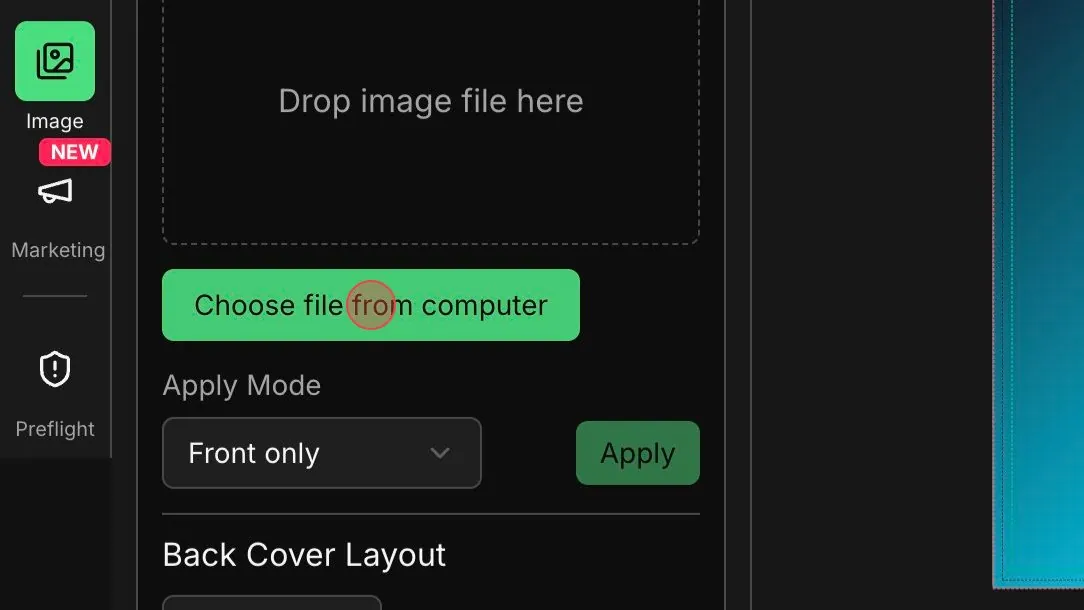
Choose file from computer
Upload the existing full-wrap cover exported from Canva or from your earlier KDP template workflow. Use the original wrap image when the design is close and only the spine width needs a small correction.
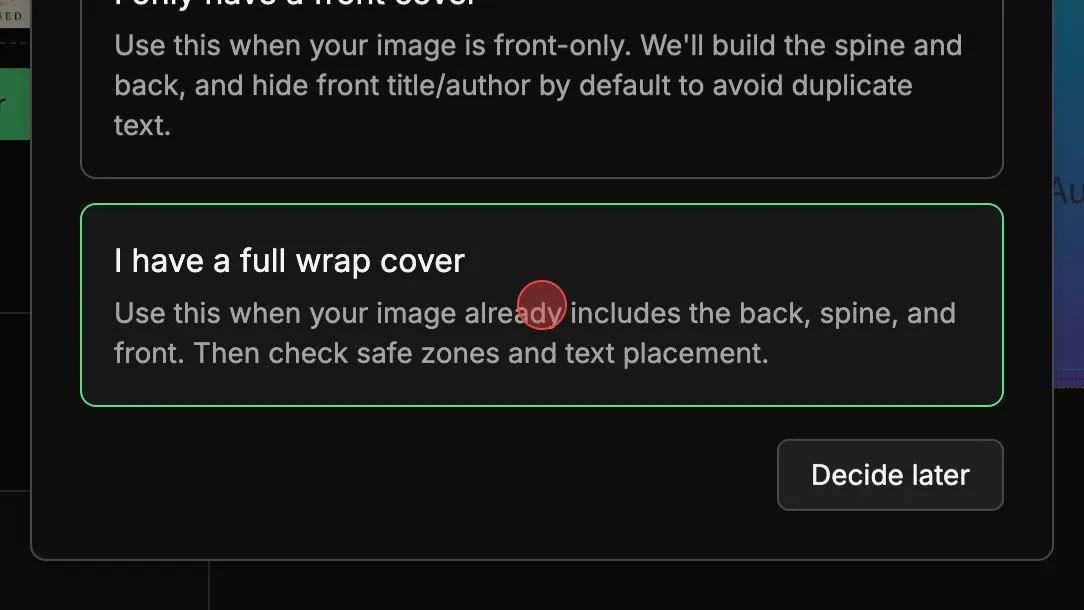
Select the full-cover import type
Choose the full-cover option so the image is treated as one continuous back-spine-front wrap. This matters because the spine and back cover need to move together.
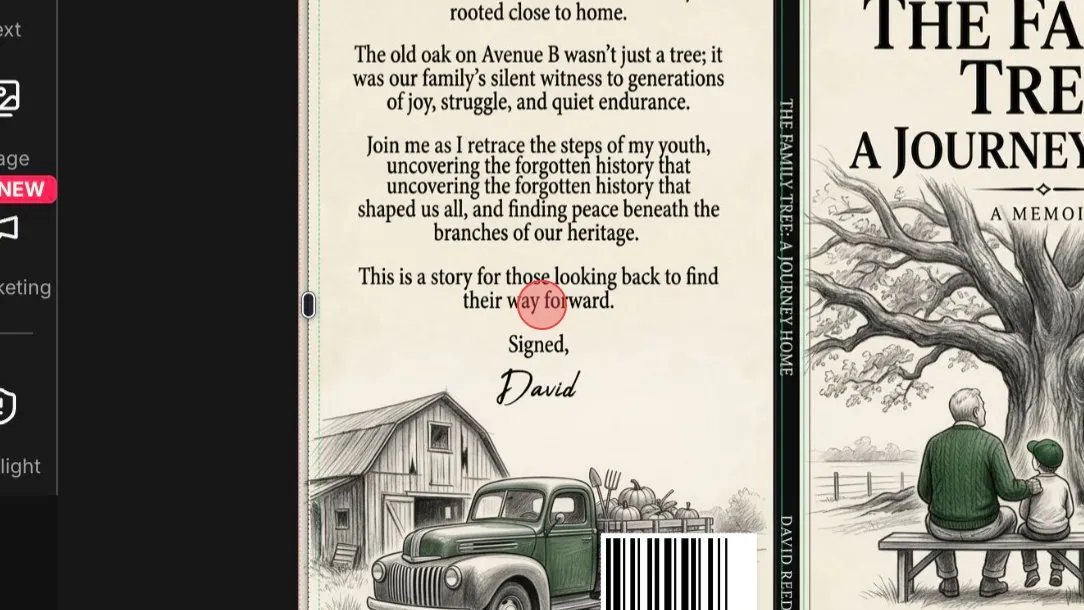
Click the imported cover
Click the cover on the canvas. The Edit Image panel appears on the right with adjustment controls, including Fit to Safe Zone, Zoom, Position, and Trim & Bleed Fill.

Check the visible mismatch
Look at the green safe-area line, black trim line, and spine guides. If the design is only slightly off, you can usually repair it by fitting and repositioning the wrap instead of redesigning the whole cover.
Fit the cover to the safe zone
Click Fit to Safe Zone. This pulls the uploaded wrap into a safer starting position so important text has less risk of crossing trim or fold lines.
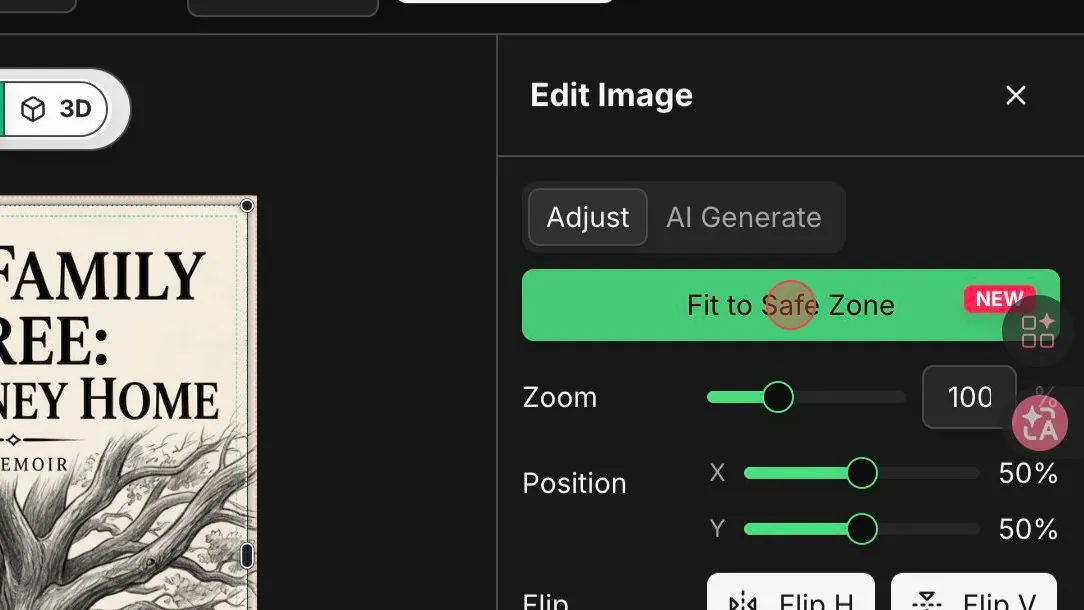
Move the image until spine text is safe
Use Position and Zoom to nudge the wrap. The goal is not to make the old template perfect; it is to keep the spine text, back-cover copy, title, and barcode space inside safe areas after the page count changes.

Open Trim & Bleed Fill
If the fitted cover leaves a thin blank edge, open Trim & Bleed Fill. This fills the bleed area with a matching color so KDP does not see a white border at the trim edge.
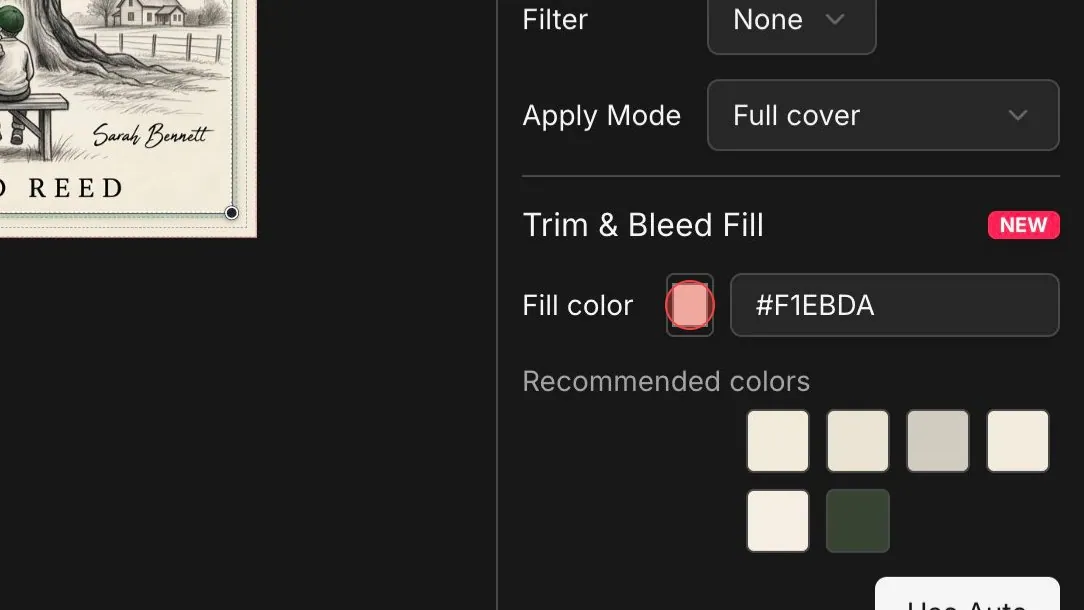
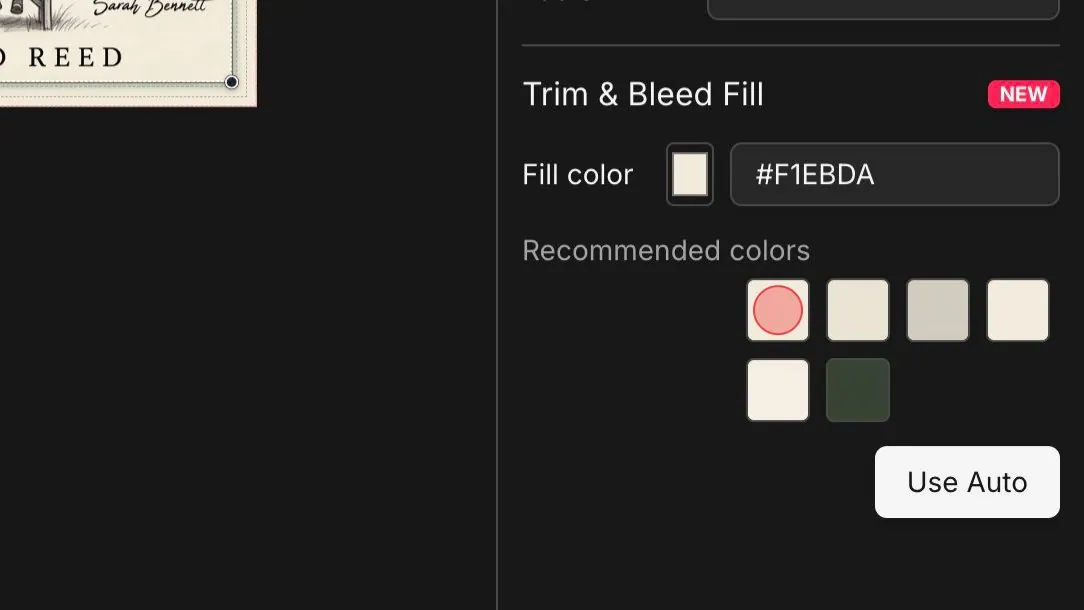
Apply a recommended fill color
Use the recommended color when it matches the cover background. In this example the suggested #F1EBDA fill blends with the paper texture around the cover edges.
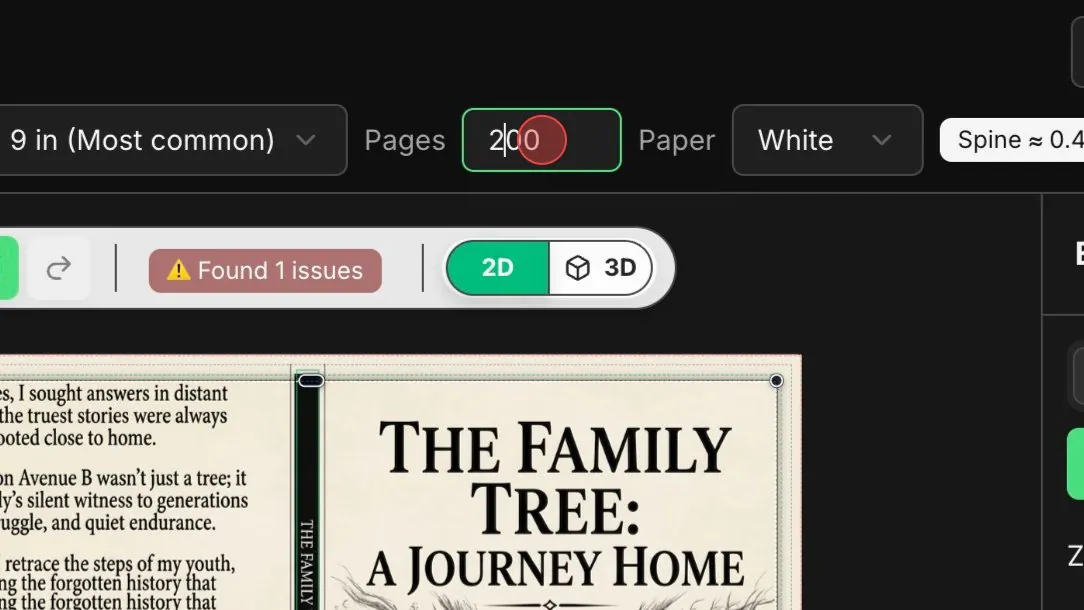
Update the page count and recheck the spine
Change the Pages field to the final page count, then check the spine width pill and the canvas again. If the mismatch is small, the repaired wrap should now be ready for precheck and export.
Repair summary table
Use this table as the text-only version of the screenshot workflow. It shows which KDP cover setting changes, which editor action to take, and what to verify before exporting the corrected paperback cover.
| Stage | What changes | What to verify |
|---|---|---|
| Before upload | Confirm paperback trim size, page count, and paper type match the final KDP setup. | The cover setup matches the final interior PDF instead of the old template. |
| Image import | Upload the existing full-wrap cover and keep it as one back-spine-front image. | The old design is close enough that only spine width, position, or bleed needs correction. |
| Safe-zone repair | Use Fit to Safe Zone, Position, Zoom, and Trim & Bleed Fill to protect text and edges. | Spine text, title, back-cover copy, and barcode space stay inside safe areas. |
| Final export | Update the Pages field, rerun precheck, and export the corrected print file. | KDP no longer reports a template size mismatch or visible bleed/safe-zone warning. |
Final precheck before upload
- The Pages field matches the final interior PDF, not the old template.
- Spine text remains inside the spine safe area after the page count update.
- Background color or image reaches the bleed edge with no blank strips.
- Back-cover copy, title, author name, and barcode space stay away from trim and fold lines.
- Precheck no longer reports a size or safe-zone issue before you export the PDF.
FAQ
Why does KDP say the template size and uploaded file do not match?
The most common cause is that the cover was made for an older trim, page count, or paper type. Even a small page-count change changes the spine width, which changes the final full-wrap width.
Can I fix this if the page count only changed a little?
Usually yes. If the spine mismatch is small, you can upload the existing wrap, fit it to the safe zone, adjust position, fill bleed edges, update the page count, and export a corrected file.
When should I not use this repair flow?
Do not use this flow when the spine is dramatically wrong. For example, if an AI-generated paperback wrap looks like a 300-page book but the real book is about 100 pages, crop the design into front and back covers and rebuild the spine separately.
Do I still need to check bleed after fitting the cover?
Yes. Fitting the image can reveal blank edges. Use Trim & Bleed Fill or a larger source image so the background reaches the bleed area before export.
Related resources
BookCoversLab KDP Cover Creator Manual
Use the full manual when the page-count fix is not enough and you need to rebuild a paperback wrap from front, spine, and back cover parts.
Open the manualKDP Cover Size Calculator
Recalculate trim size, page count, paper type, spine width, and full-wrap dimensions before exporting another cover file.
Calculate exact sizeSpine Width Guide
Understand why page count and paper type change the printable spine area of a paperback cover.
Read spine guideBook Cover Error Fix
Diagnose related KDP cover errors, including bleed, trim, barcode, low-resolution image, and unsafe text warnings.
Fix cover errors