
Quick answer: move the back-cover content, not the barcode box
Treat KDP's reserved barcode box as fixed. Move the full wrap slightly left for a minor overlap, use Fit to Safe Zone if several elements are tight, or import the front and back artwork separately when only the back panel needs a larger adjustment. Then preflight and export one PDF.
Separate images are only an editing method inside BookCoversLab KDP Cover Creator. KDP still requires one print-cover PDF containing back, spine, and front.
Why the KDP barcode covers back-cover text
KDP accepts print covers with or without a barcode. If your PDF does not include one, Amazon adds the ISBN barcode to the back cover. The conflict begins when that location contains a surname, blurb, logo, portrait, or detail. KDP says images or text there can cause rejection; its hardcover guidance says the automatic barcode will cover that content during printing.
This is a layout conflict. Clear the Amazon-placed barcode area or intentionally supply one compliant barcode. If your PDF already has one, confirm that KDP is not replacing it after failed validation.
How much space should you reserve?
For a hardcover where Amazon supplies the barcode, KDP specifies a 2 x 1.2 inch (50.8 x 30.5 mm) white box in the lower-right corner of the back cover. For a barcode you supply, KDP recommends the same size, allows a minimum of 1.4 x 0.8 inches, requires white behind it, and prefers vector or 300 PPI raster artwork.
Placement rules also matter. KDP's general barcode page requires at least 0.25 inch from the spine and trim. Its hardcover page requires at least 0.76 inch from the bottom and 0.25 inch from the hinge. Treat the BookCoversLab barcode guide as a no-content zone; do not move it to make a design appear to fit.
Repair the overlap in three practical paths
1. Shift a nearly correct full wrap slightly left
This is the fastest fix when one letter or a small part of the back-cover text enters the barcode box. Select the imported full wrap and nudge it left until the text clears the reserved area. Keep the movement small. Recheck the spine, front title, author name, and trim margins because the entire image moves together.
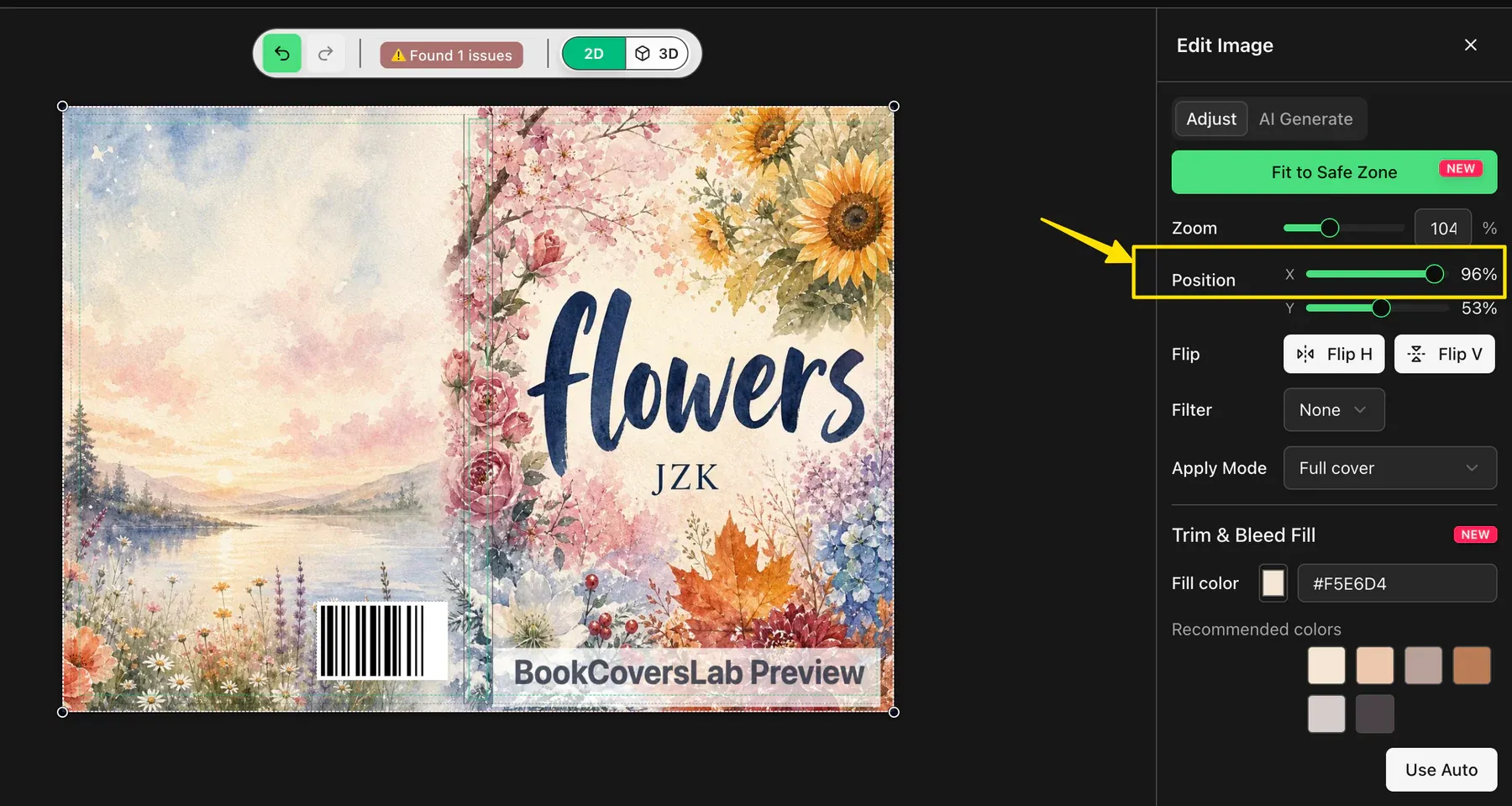
2. Use Fit to Safe Zone, then repair the bleed
If the back text, spine, and front typography all feel tight, click Fit to Safe Zone. It gives the uploaded artwork a safer starting position. Finish with Zoom and Position. If fitting reveals a blank strip, use Trim & Bleed Fill or extend a matching background to the bleed edge.
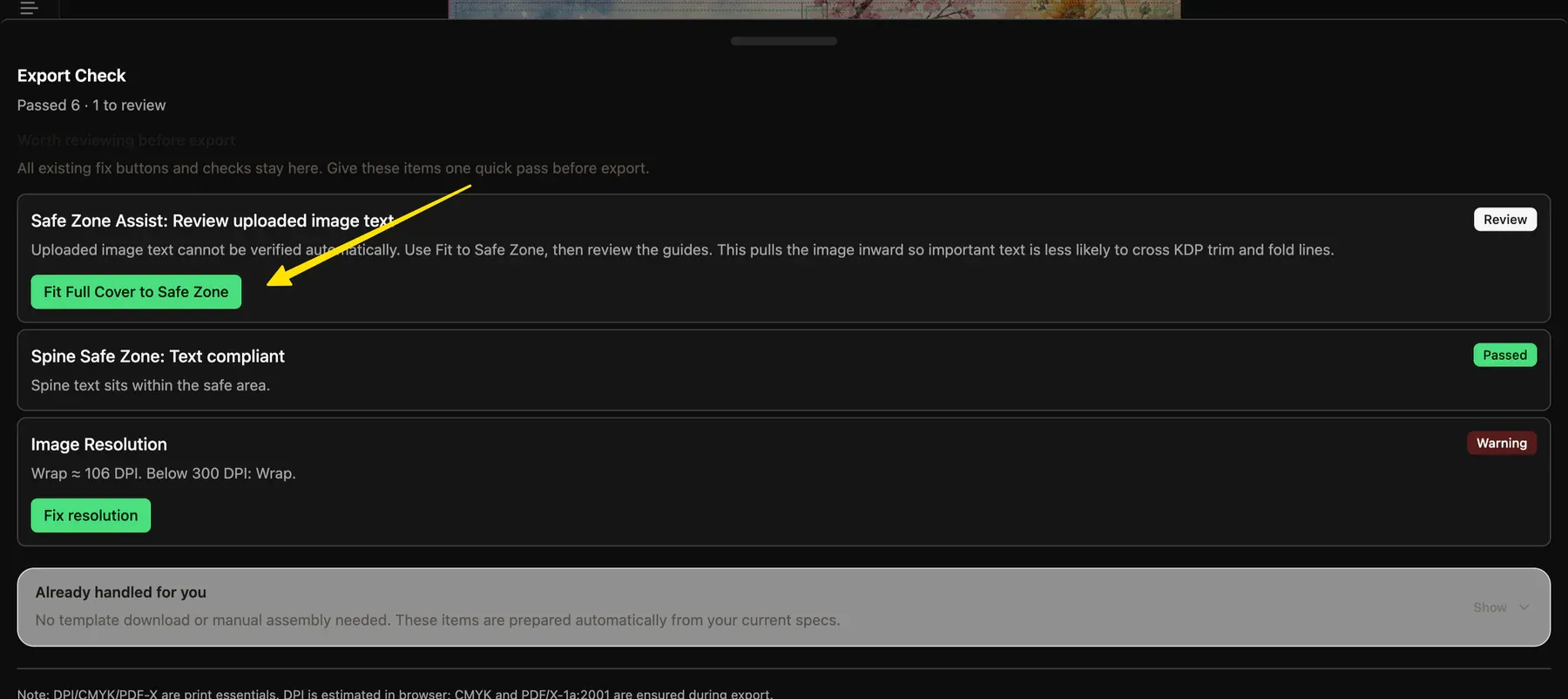
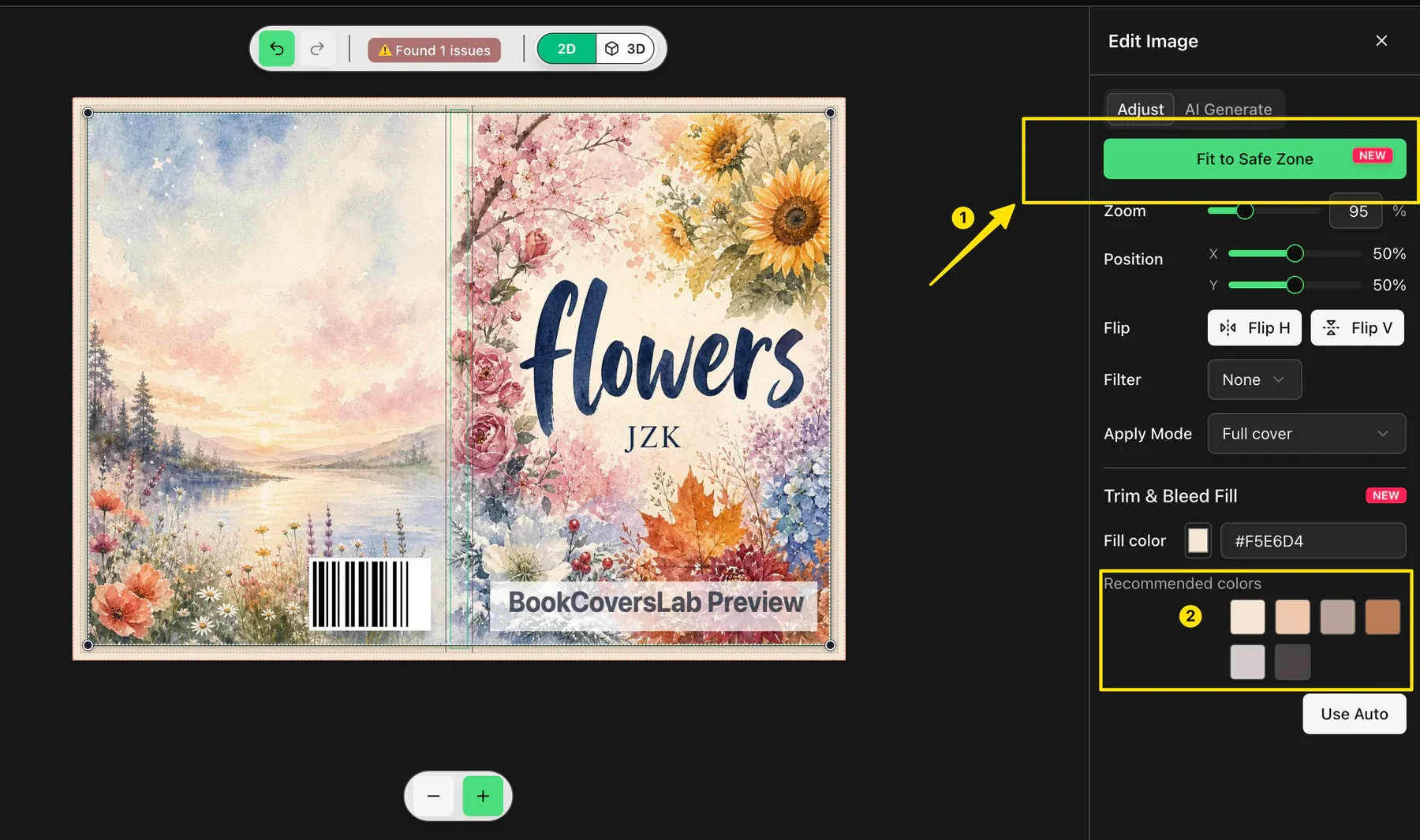
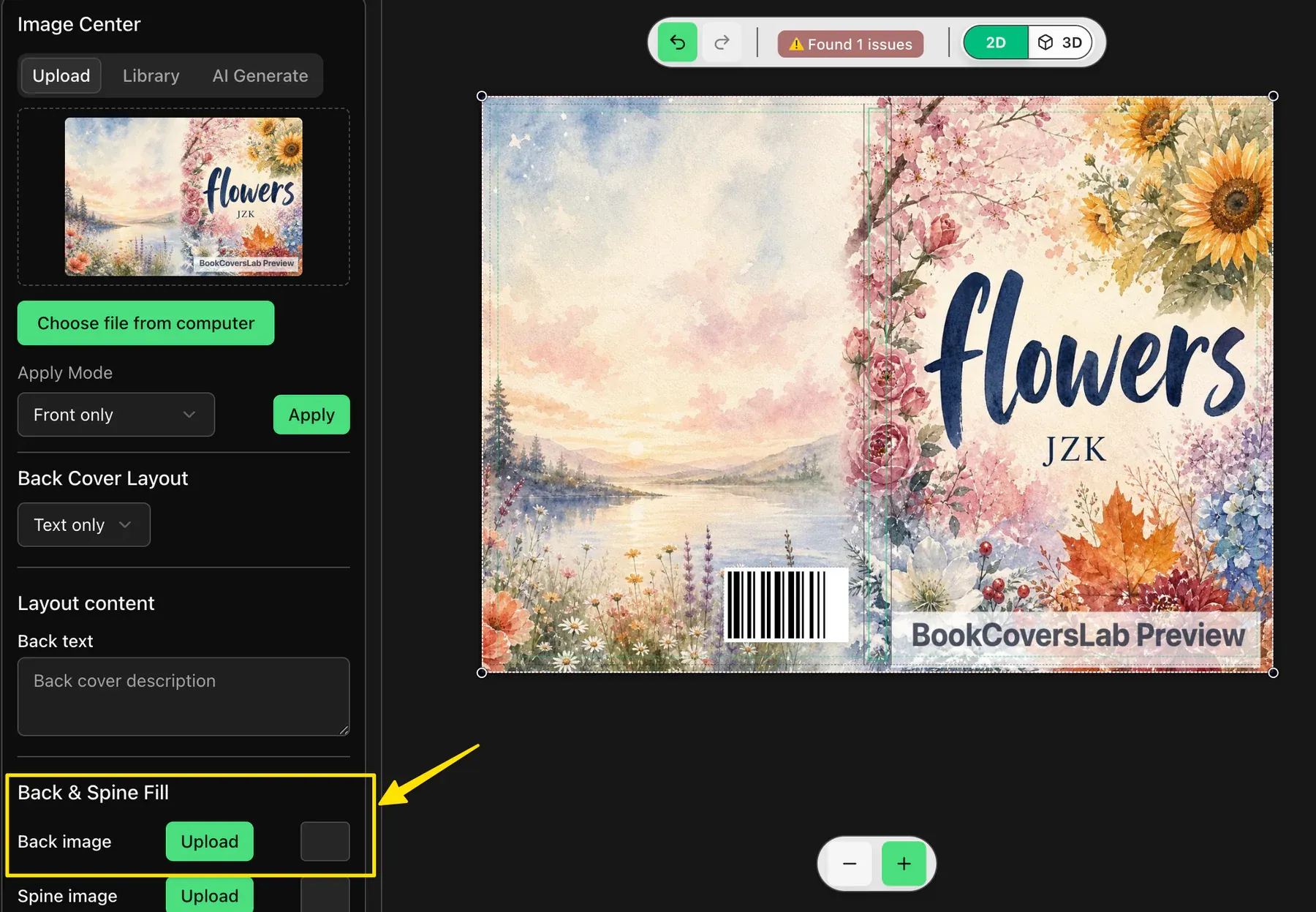
3. Edit the back cover independently
Use this path when shifting the full wrap damages the front cover or spine. Import the usable front and back panels as separate images, then reposition only the back image. Rebuild spine text in the calculated spine area, leaving enough room around the barcode.
Choose the smallest repair that keeps every panel safe
| Situation | Best fix | What to watch |
|---|---|---|
| The overlap is only a few pixels | Move the full wrap slightly left. | Recheck the spine and front-cover title. |
| Several elements sit close to trim or the barcode box | Use Fit to Safe Zone, then fine-tune Zoom and Position. | Fill any exposed bleed edge. |
| Only the back cover needs to move | Import the front and back artwork separately and reposition the back panel. | Export one final full-wrap PDF. |
Final precheck and official sources
- Important back-cover content stays outside the barcode reserve.
- The spine and front cover remain aligned after any full-wrap shift, and important text stays inside the green safe guides.
- Background artwork reaches the bleed edge with no white strip or accidental border.
- The final export is one back-spine-front PDF.
- The KDP Print Previewer shows the expected barcode location before you approve the book.
Check the current platform rules before a final upload:
- Amazon KDP barcode options and formatting requirements
- Amazon KDP hardcover cover and barcode placement rules
- Amazon KDP paperback cover specifications
FAQ
Will KDP add a barcode if my cover PDF does not contain one?
Yes. KDP automatically places a barcode on a back cover that does not include one.
Where does KDP put the barcode on a hardcover?
KDP specifies a 2 x 1.2 inch white box in the lower-right corner of the hardcover back cover when Amazon adds the barcode.
Can I simply move the entire cover to the left?
Yes, when the overlap is small and the shift keeps the spine, front title, trim, and bleed aligned. Otherwise, reposition only the back-cover artwork.
Can I upload the front and back covers separately to KDP?
No. Separate images are an editing workflow inside BookCoversLab. Your final KDP print cover must still be exported and uploaded as one full-wrap PDF.
Should I add my own ISBN barcode instead?
Only if it meets KDP formatting rules. KDP recommends its free Amazon-placed barcode when a supplied code fails validation.
Related resources
BookCoversLab KDP Cover Creator Manual
Understand the barcode box, safe area, trim, bleed, and separate back-cover workflow.
Open the manualKDP Barcode Generator
Generate an ISBN barcode only when you intend to supply your own compliant code.
Review barcode optionsKDP Cover Requirements
Check full-wrap dimensions, bleed, safe zones, barcode clearance, and export quality.
Read the requirementsFix Text Outside the KDP Safe Zone
Use this when the spine or several text elements are unsafe.
Fix unsafe text