
How to Use an IngramSpark Cover Template Without Breaking the Wrap
If you are trying to use an IngramSpark cover template, the first rule is simple:
do not rebuild the canvas by hand.
That is where many hardcover and full-wrap workflows start drifting. Someone downloads the official template, recreates something “close enough” in another editor, then keeps nudging text and artwork until the wrap no longer matches the real file.
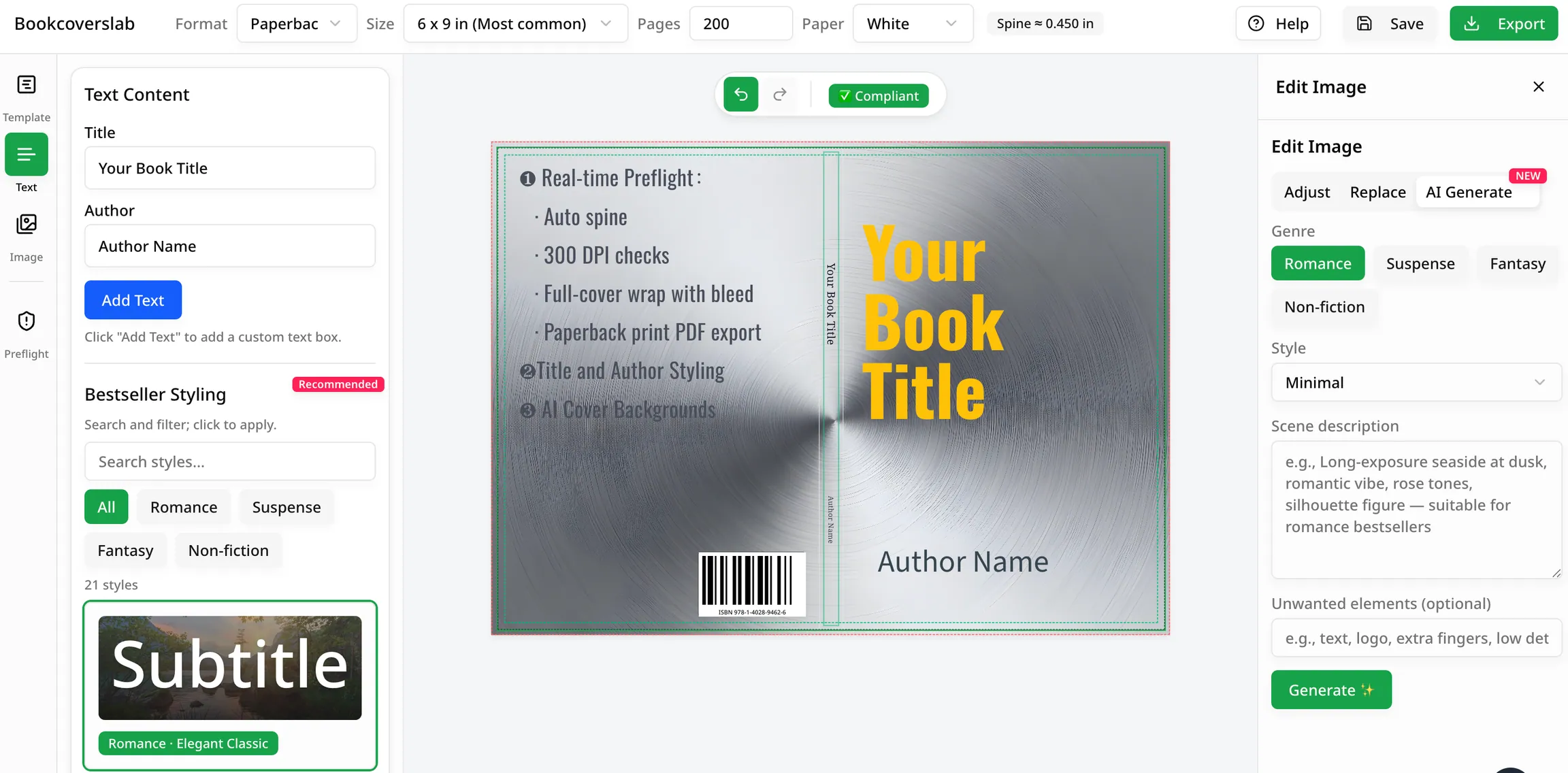
The safer workflow is to keep the official template as the source of truth and finish the cover inside it. In BookCoversLab, that means using IngramSpark Cover Creator as the editor layer on top of the template instead of treating the template like a loose reference image.
Quick answer
If you want to use an IngramSpark cover template correctly:
- confirm trim size, binding, paper, and page count first
- download the exact official template for that setup
- import the template without resizing or cropping it
- keep artwork, spine text, and logos inside the safe geometry
- export a separate cover PDF
- download a fresh template whenever the specs change
That workflow matters because IngramSpark template handling is not just design work. It is geometry control.
What the template is actually doing
An IngramSpark cover template is not only a background guide. It defines:
- the full outer size
- the live front / spine / back zones
- the barcode reservation area
- any extra wrap and gutter logic for hardcover variants
That is why the template should stay intact until export. If the outer size changes, the rest of the layout stops meaning anything.
Step 1: lock the publishing specs first
Before you open the template, confirm these in IngramSpark:
- trim size
- binding type
- paper choice
- final page count
If any of those are still moving, the cover template is still moving too.
That is also why you should not finish the wrap before the interior is stable. If you are still deciding on the interior PDF or page count, stabilize that work first. For coloring books, the handoff usually runs through AI Coloring Pages to KDP PDF before the wrap should be treated as final.
Step 2: import the official template without resizing it
Once the specs are locked, import the official IngramSpark template exactly as downloaded.
Do not:
- crop it
- scale it down
- rebuild a “clean” version from scratch
- paste the guides into another canvas and guess the size
If you need a working editor around the template, use IngramSpark Cover Creator and keep the official geometry visible while you place the art.
Step 3: place visuals inside the template instead of around it
At this stage, think in layers:
- the template defines the geometry
- your cover art fills the geometry
- the typography has to stay inside the safe zones
If you only have a front cover concept, it is usually easier to extend that concept into a full wrap than to restart from scratch. You can generate the initial concept in AI Book Cover Generator, then place the chosen direction back into the IngramSpark template workflow.
Step 4: protect the barcode area and outer risk zones
One of the easiest mistakes is treating the back cover like free visual space.
It is not.
Important text, logos, and key design elements should avoid:
- the barcode area
- the outer trim risk zones
- any hardcover-specific wrap or gutter areas
If you are not sure how the outer geometry changes between bindings, compare the setups in Perfect Bound vs Case Laminate for IngramSpark Covers before you keep pushing the artwork outward.
Step 5: export a separate cover PDF
The cover file should remain separate from the interior file.
That means:
- one export for the cover
- one export for the interior
- no merged “all-in-one” print file
If the design is final and you want listing visuals next, move into Book Mockup Generator after the cover PDF is locked.
Step 6: re-download the template when the specs change
This is the step many people skip.
If any of these change:
- page count
- paper
- binding
- trim
you should download a fresh template and realign the cover instead of forcing edits into the old one.
That rework is annoying, but it is still safer than patching the wrong geometry.
FAQ
Can I resize an IngramSpark cover template?
No. Once you resize it, the outer dimensions and safe geometry stop matching the official file.
Can I use the same IngramSpark template after the page count changes?
Usually no. A page-count change can alter the spine width and therefore the full wrap size.
What is the easiest way to edit an IngramSpark template?
Use the official template as the geometry layer, then edit inside it with IngramSpark Cover Creator.
Related Resources
IngramSpark Cover Creator
Import the official template, place the full wrap, and export a cleaner IngramSpark cover PDF.
Open the IngramSpark workflow
Perfect Bound vs Case Laminate
Compare how wrap, gutter, and outer zones change before you export the final cover.
Compare the binding setups
AI Book Cover Generator
Generate front-cover concepts first, then move the chosen direction into the template workflow.
Generate cover ideas
Author

Categories
More Posts
Best Free KDP Cover Tools for Self-Publishing Authors in 2026
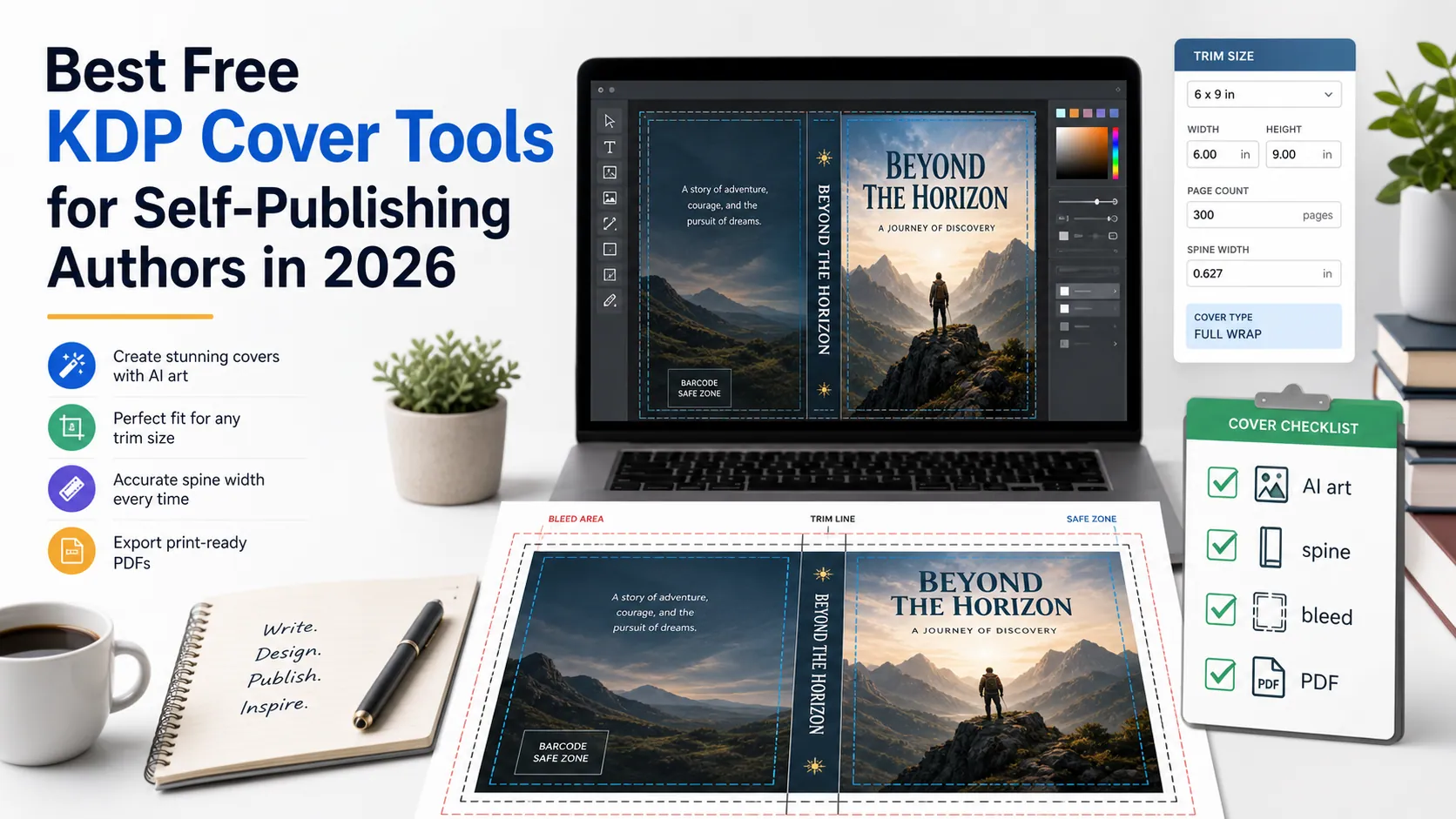
Compare free KDP cover tools for AI cover ideas, Canva design, cover templates, spine width, bleed, barcode space, mockups, and print-ready PDF checks.

Low-Competition KDP Niches for 2026 (Coloring Book Stacks)
Find low-competition KDP niches in 2026 by stacking coloring book audience, theme, and line weight. Use Amazon autocomplete and print specs, not invented title counts.
Book Cover Typography: 7 Rules for Titles That Get Noticed
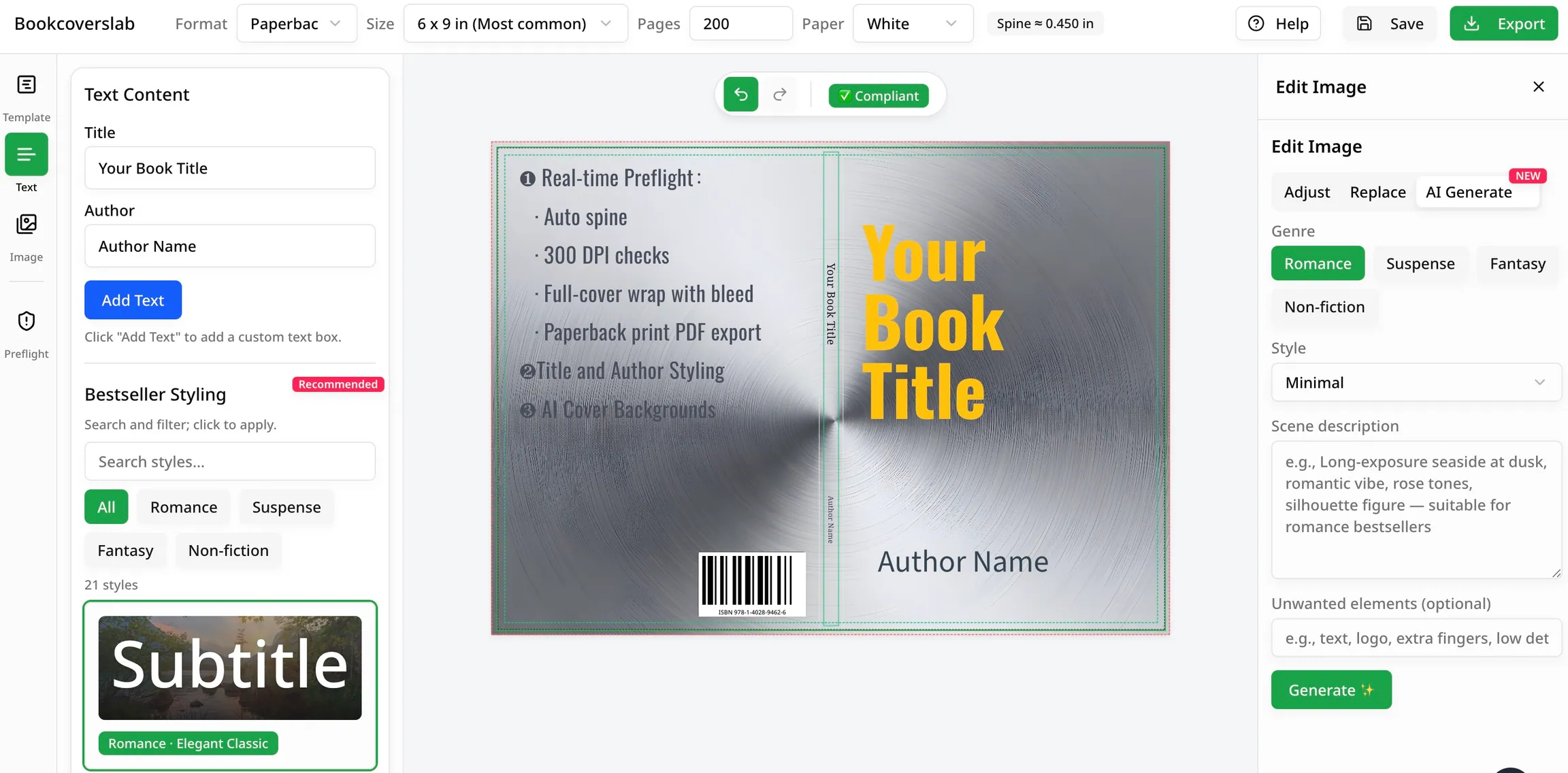
Master book cover typography with practical rules for font choice, hierarchy, genre fit, thumbnail readability, pairing, and crisp KDP print export.
Newsletter
Join the community
Subscribe to our newsletter for the latest news and updates