
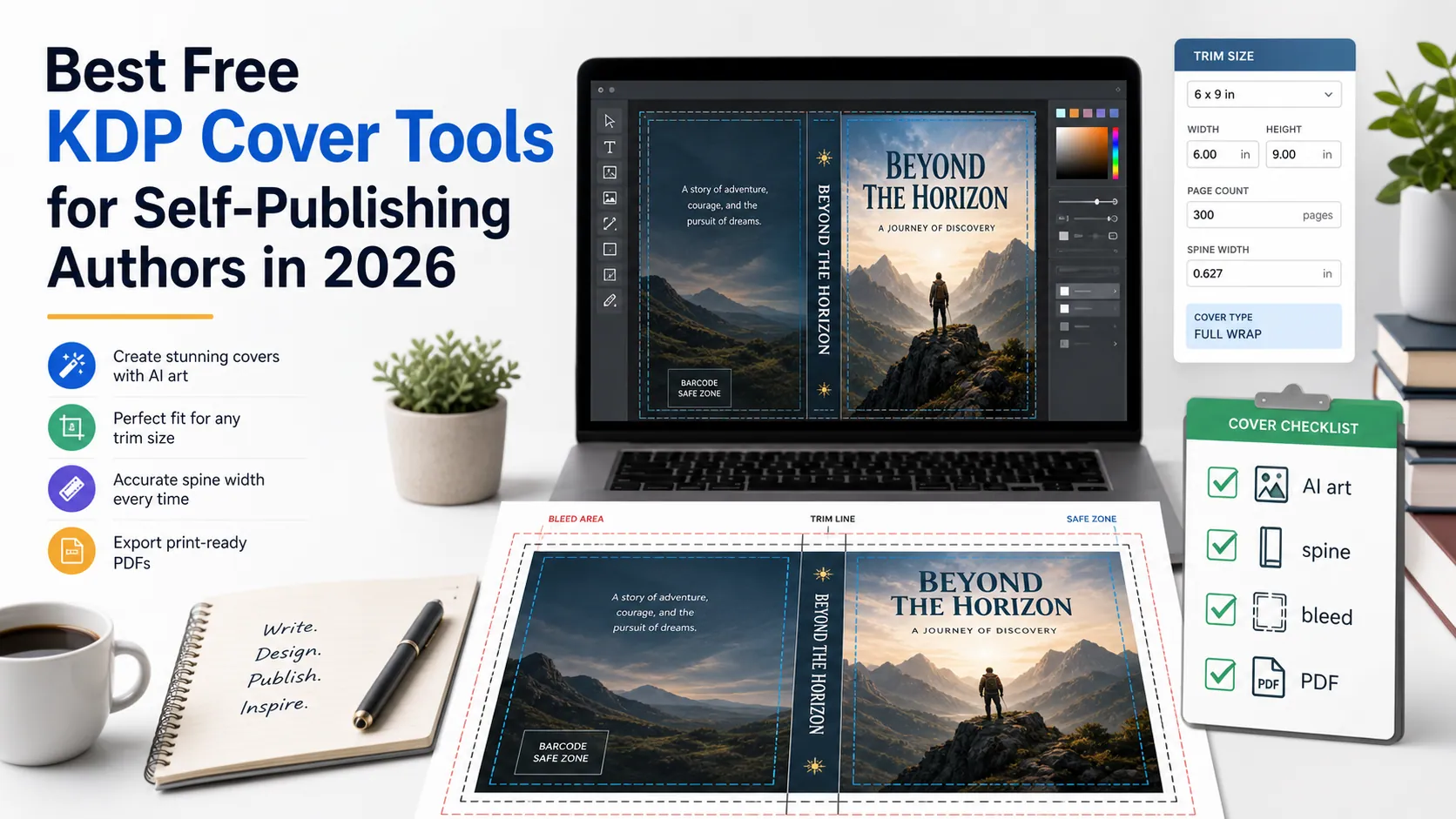
Best Free KDP Cover Tools for Self-Publishing Authors in 2026
Free KDP cover tools can help you design a better book cover, but they do not all solve the same problem. Some tools are good for AI cover ideas. Some are good for visual editing. Some only calculate the cover size. Others help you build a paperback wrap with spine, bleed, barcode space, and a print-ready PDF.
That difference matters because Amazon KDP does not judge your cover as a pretty image. For print books, KDP needs a correctly sized cover file. Amazon's own cover calculator exists for this reason: it helps authors find the exact dimensions and download a PDF or PNG template for their book setup. KDP also says paperback covers need bleed, and its paperback guidance calls for a continuous cover image with the right trim, spine, and safe-area setup.
This guide compares the best free KDP cover tools by job: AI art, official cover creation, Canva design, template generation, size calculation, mockups, and final preflight. The goal is not to find one magic button. The goal is to build a free or low-friction workflow that gets you from cover idea to KDP-ready upload.
Review note: This page was reviewed on June 11, 2026. Free plans, export limits, and vendor features change often, so verify each tool before relying on it for a final upload.
Need more than a front-cover image? Start with a KDP-aware workflow that can handle trim size, spine, bleed, barcode space, and print-ready export.
Quick answer: the best free KDP cover tool stack
If you are self-publishing on KDP, use a tool stack instead of one generic design app:
| Cover job | Best free starting point | Why it helps |
|---|---|---|
| Generate cover ideas | BookCoversLab AI Book Cover Generator | Good for fast visual directions before building the final KDP file |
| Build the final paperback wrap | BookCoversLab KDP Cover Creator | Handles the KDP-specific production problem: front, spine, back, bleed, barcode space, and export workflow |
| Use an official basic builder | Amazon KDP Cover Creator | Free official option during title setup, useful for simple covers |
| Design visually from templates | Canva Book Cover Maker | Easy editor, templates, stock assets, and AI design tools |
| Calculate exact dimensions | KDP cover calculators and templates | Helps find trim, spine, bleed, and full-wrap dimensions |
| Check your cover before upload | KDP preview and preflight checklist | Catches the practical mistakes that cause upload problems |
| Create marketing images | Book mockup tools | Useful after the upload file is finished, not as the upload file itself |
The safest free workflow is simple: create the visual idea, calculate the correct KDP dimensions, build the full wrap, then run a final check before upload.
What "free KDP cover tool" really means
Most search results mix several different tool types under the same phrase:
- AI cover generators create images or design directions.
- Design editors help you arrange text, images, and layout.
- Cover calculators find the exact print dimensions.
- Template generators create a guide layer for your chosen trim and page count.
- Mockup tools create marketing images after the real cover exists.
- KDP-ready cover creators connect the design to print requirements.
That is why many authors get stuck. They use a free image generator or Canva template, download a nice front cover, and then discover that KDP paperback covers need more than a front image. For print books, the file must account for the back cover, spine, bleed, trim line, safe zones, and barcode placement.
Amazon's paperback guidance says cover files need bleed, and its cover calculator exists to help authors find exact dimensions. Canva, meanwhile, is excellent for designing custom book covers and offers a free online book cover maker, but it is still a general design editor. You need KDP-specific math around it.
1. BookCoversLab AI Book Cover Generator
Best for: fast AI cover concepts before you build the final KDP file.
Use the AI Book Cover Generator when you are still exploring the visual direction of the cover. This is the stage where you test genre mood, color, focal object, character style, and thumbnail appeal.
This tool is most useful when you know the cover is not finished yet. The output should answer questions like:
- Does the image fit the genre?
- Is there room for a readable title?
- Does the focal point survive at Amazon thumbnail size?
- Could this concept become a front cover?
It is not the whole print workflow. After you pick the visual direction, move into a KDP-aware cover builder to handle trim, spine, bleed, barcode space, and print export.
2. BookCoversLab KDP Cover Creator
Best for: turning a cover idea into a KDP-ready full-wrap workflow.
The KDP Cover Creator is the best next step when you have a front-cover concept, Canva design, AI image, or existing ebook cover and need to turn it into a print-ready cover workflow.
This is where the real KDP problem starts:
- paperback covers need front, spine, and back in one layout
- page count affects spine width
- trim size affects the full cover dimensions
- bleed must be handled before export
- barcode space must stay clean
- the final file must be checked before upload
That is the gap generic design tools often leave open. You can make a beautiful image somewhere else, but KDP still needs a production-ready file.
Use this path when your question is not "Can I make a nice cover?" but "Can I upload this cover to KDP without a size, bleed, or wrap problem?"
3. Amazon KDP Cover Creator
Best for: a free official cover option during KDP title setup.
Amazon's own KDP Cover Creator is a free official tool that helps authors create and customize ebook, paperback, or hardcover covers with layouts and fonts. It can use the book details you enter during title setup and place the ISBN barcode area on the back cover.
This makes it useful for simple covers, especially if you want to stay inside the official KDP setup flow. It is also a good reference point for understanding what KDP considers a cover-building workflow.
The limitation is design control. If you want a stronger genre look, custom AI art, more flexible typography, or a workflow that starts before you are inside the KDP title setup process, you may want to build the cover elsewhere and use KDP's official guidance as the final standard.
Source: Amazon KDP Cover Creator
4. Canva Book Cover Maker
Best for: free visual editing, templates, typography, and layout experimentation.
Canva's free book cover maker is one of the easiest ways to create a good-looking front cover. Canva offers a drag-and-drop editor, book cover layouts, stock assets, and AI design tools. For ebook covers, front-cover concepts, and social graphics, it can be very fast.
For KDP print covers, the warning is simple: Canva is a design tool, not automatically a KDP production tool. You still need to set the correct full-wrap dimensions, account for spine width, add bleed, reserve barcode space, and export a file KDP can accept.
Use Canva when you want visual control. Use a KDP cover calculator or KDP-aware cover builder when you need exact print geometry.
Helpful internal resources:
- KDP Cover Wrong Size in Canva? Here's the Easy Fix
- Canva Alternative for KDP Covers
- KDP Cover Size Calculator
Source: Canva Book Cover Maker
5. KDP cover calculators and templates
Best for: getting the exact dimensions before you design or export.
KDP cover calculators and templates solve one of the most common publishing problems: authors design at the trim size instead of the full cover size.
For example, a 6" x 9" paperback cover is not just 6" x 9" if you are uploading a full paperback wrap. The full file also includes the back cover, spine, and bleed. Spine width changes when your page count or paper type changes.
Amazon's Print Cover Calculator and Templates lets authors enter book details and download a guide-layer template. This is the baseline source to check before building the final cover.
Use calculator/template tools when:
- you know your trim size
- your page count is close to final
- you are moving from front-cover art to full-wrap print design
- your previous upload failed because the cover was the wrong size
Internal tools and guides:
Official source: Amazon KDP Print Cover Calculator and Templates
6. Free AI image tools
Best for: visual exploration, not final upload files.
General AI image tools can be useful for early-stage cover art. They can help you test a fantasy landscape, thriller object, children's book scene, romance mood, or nonfiction symbol before you spend time on layout.
The danger is assuming the image is the cover. Most AI image tools do not handle:
- print-wrap dimensions
- spine width
- back-cover layout
- barcode-safe space
- bleed
- embedded text quality
- final PDF export
Use AI image tools for ideation. Then bring the chosen image into a book-cover workflow that handles typography and print production.
Related resource: Best AI Cover Tools for KDP Authors in 2026
7. Free mockup tools
Best for: marketing your finished cover.
Mockup tools help you show your cover on a paperback, hardcover, Kindle, tablet, desk scene, or social media graphic. They are useful for launch images, ads, newsletter graphics, and product pages.
But a mockup is not a KDP upload file. It is a marketing image made after the cover exists.
Use mockups after you have:
- a finished ebook cover
- a finished paperback wrap
- a checked print-ready file
- a title/author layout that works at small sizes
If you still need spine, bleed, or barcode setup, finish the KDP cover first.
Which free KDP cover tool should you choose?
| Your situation | Start here | Next step |
|---|---|---|
| "I need cover ideas" | AI Book Cover Generator | Move the best concept into KDP Cover Creator |
| "I made a front cover in Canva" | KDP Cover Size Calculator | Build the full wrap in KDP Cover Creator |
| "KDP says my cover is the wrong size" | Cover Size Calculator | Rebuild with the correct trim, spine, and bleed |
| "I want the official free option" | Amazon KDP Cover Creator | Use KDP preview before publishing |
| "I need a paperback PDF" | KDP Cover Creator | Run preflight and export |
| "I need promo graphics" | Mockup tool | Use the finished cover, not a draft |
Recommended free KDP cover workflow
- Start with the book type. Decide whether you need ebook only, paperback, hardcover, or multiple formats.
- Create the visual direction. Use an AI cover generator, Canva, or your own image source.
- Pick the exact KDP setup. Choose trim size, binding, paper type, and final page count.
- Calculate the cover dimensions. Use the KDP cover calculator or a KDP-aware cover tool.
- Build the full wrap. Add front cover, back cover, spine, bleed, and barcode-safe space.
- Check readability. Test title and author name at thumbnail size.
- Export the right file. For print, use a print-ready PDF workflow.
- Preview before publishing. Review size, bleed, margins, barcode, and visual alignment before upload.
Common mistakes with free KDP cover tools
- Designing only the front cover for a paperback.
- Setting the Canva canvas to trim size instead of full-wrap size.
- Forgetting that page count changes spine width.
- Letting AI generate unreadable title text.
- Placing important text where KDP may add the barcode.
- Ignoring bleed because the file looks good on screen.
- Using a mockup image as if it were the upload file.
- Exporting an ebook cover and expecting it to work for paperback.
Amazon's paperback submission guidance notes that covers should be one continuous image and require bleed. KDP's cover calculator and templates exist because these details are easy to get wrong manually.
Official references:
FAQ
What is the best free tool to make a KDP cover?
The best free starting workflow is a stack: use an AI or design tool for the front-cover concept, then use a KDP cover calculator or KDP-aware cover creator for the full wrap, spine, bleed, barcode space, and export.
Can I use Canva for Amazon KDP covers?
Yes, but Canva works best when you already know the correct KDP dimensions. For print books, do not design only at the trim size. Calculate the full cover wrap first, including spine and bleed.
Does Amazon KDP have a free cover creator?
Yes. Amazon KDP offers a free Cover Creator inside the publishing workflow. It can help create ebook, paperback, and hardcover covers with layouts and fonts.
Can AI make a KDP-ready book cover?
AI can help create cover art or visual concepts, but most AI image tools do not produce a complete KDP-ready paperback wrap. You still need trim size, spine width, bleed, barcode space, typography, and export checks.
Do I need a full-wrap cover for KDP paperback?
Yes. A KDP paperback cover is not just the front image. It includes the front cover, spine, back cover, and bleed in one print-ready file.
What size should my KDP cover be?
It depends on trim size, page count, paper type, and binding. Use a KDP cover calculator or template before designing the final print cover.
Is a free book cover maker enough for print publishing?
It can be enough for a front-cover design, but print publishing requires more technical checks. The safer workflow is to combine a design tool with a KDP-aware size, wrap, and preflight workflow.
Final recommendation
If you only need a visual idea, a free AI cover generator or Canva template can help. If you are publishing a paperback on KDP, you need more than a nice front image.
The best free KDP cover workflow is:
- generate or design the cover concept
- calculate the KDP dimensions
- build the full wrap
- check spine, bleed, barcode space, and export quality
- preview before upload
That is why a KDP-aware tool stack works better than choosing one generic design app. Use free tools for the job they are best at, then finish the cover in a workflow built for KDP print requirements.
Ready to turn a cover idea into a KDP-ready file?
Author

Categories
More Posts
Perfect Bound vs Case Laminate for IngramSpark Covers
Compare Perfect Bound and Case Laminate cover setup in IngramSpark. Learn how wrap, gutter, spine behavior, and outer risk zones change before you export the final cover PDF.
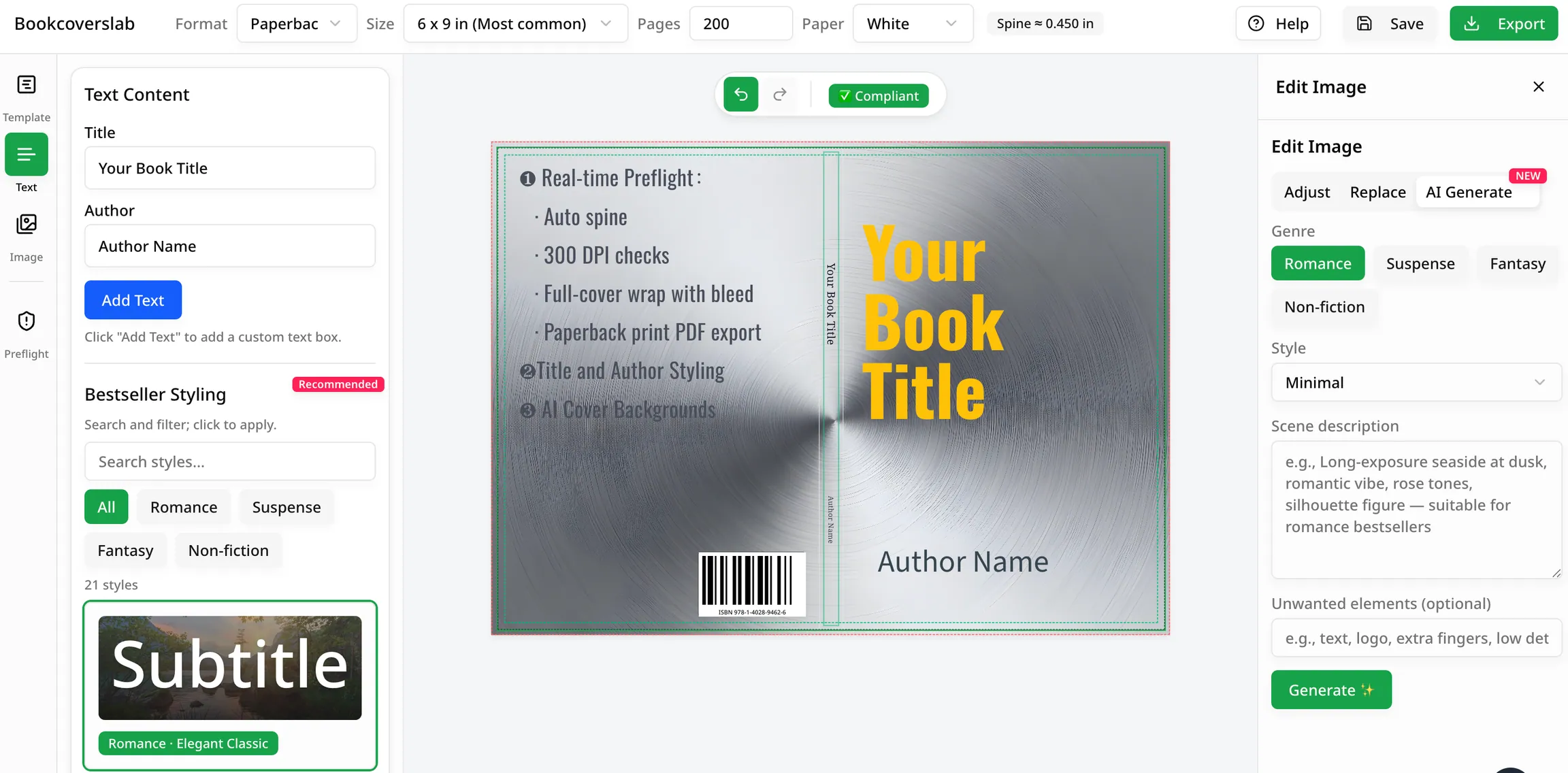
Best KDP Cover Creator Alternative Tool for Print-Ready Covers
Looking for a better KDP Cover Creator alternative? See how BookCoversLab helps you build print-ready 300 DPI covers with exact spine, bleed, and preflight checks.
KDP Cover Wrong Size in Canva? Here’s the Easy Fix
KDP rejection errors? Learn why your Canva book cover keeps coming in wrong size for KDP (it's the spine and bleed!) and discover the easy, error-proof fix.
Newsletter
Join the community
Subscribe to our newsletter for the latest news and updates