
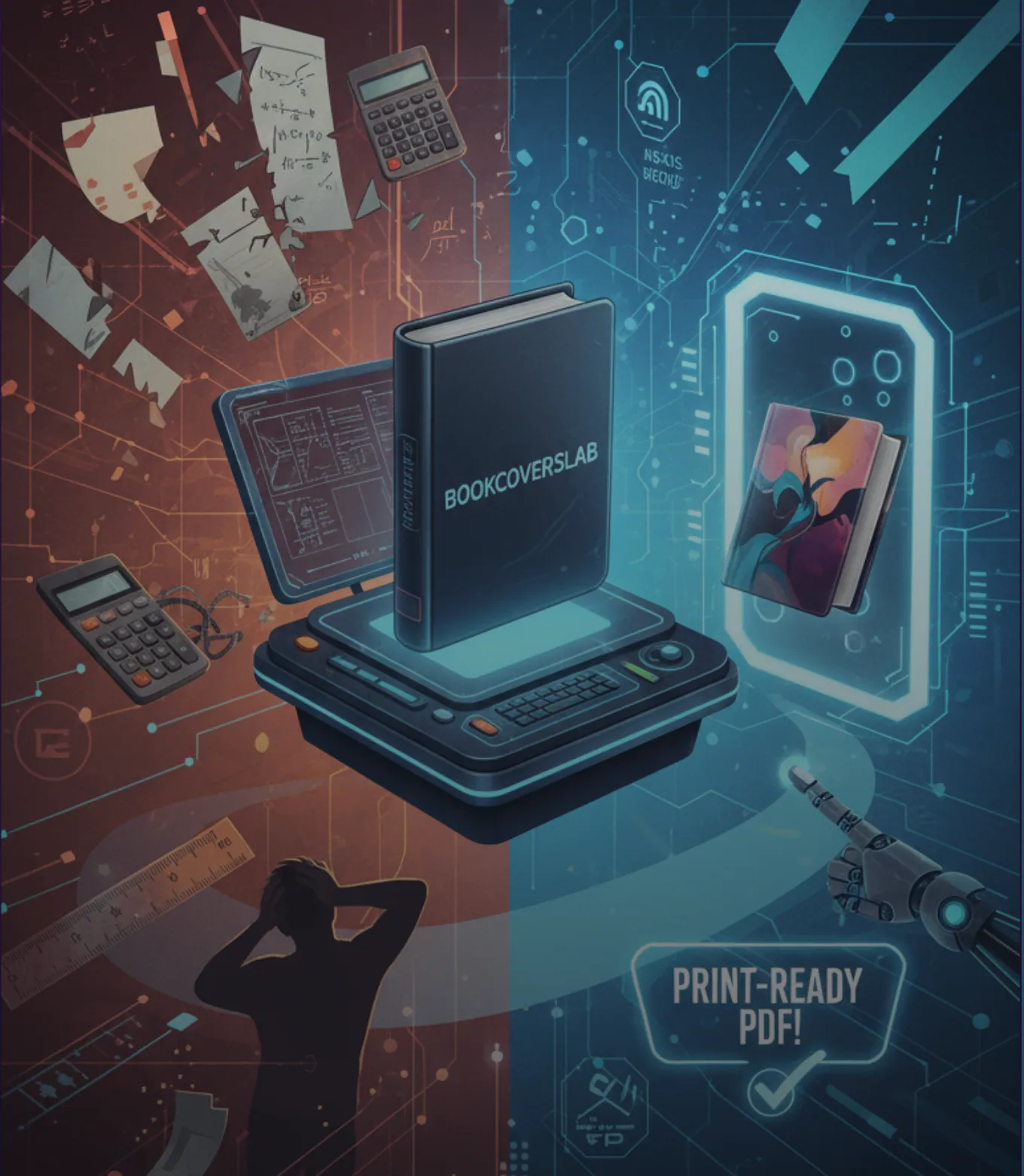
Best KDP Cover Creator Alternative Tool for Print-Ready Covers
For indie authors, designing a cover is often more daunting than writing the book itself. If you aren't a professional graphic designer, you are usually stuck with two terrible choices: settle for the outdated, cookie-cutter templates found in Amazon's native KDP Cover Creator, or pay hundreds of dollars to hire a freelancer.
Many authors try to bridge this gap with generic tools like Canva, only to face the frustration of rejection. "Error: Spine width incorrect" or "Error: Text extends into the bleed zone" are nightmares we know too well.
Here is the good news: You can do it yourself, without learning Photoshop and without doing complex math.
This guide reveals how to use BookCoversLab—a specialized intelligent tool built for KDP—to generate a perfectly compliant, PDF/X-1a print-ready cover in 6 streamlined steps.
Want to follow along inside the editor? Open the cover creator and use this guide as your step-by-step checklist.
Open the Free KDP Cover Creator
Why Do "Generic Design Tools" Cause KDP Upload Failures?
Before we start designing, we need to understand why your covers get rejected. Most generic design software (like Canva or standard photo editors) does not understand the strict printing rules of Amazon KDP.
They are drawing tools, not publishing tools.
Take a look at the data below. This is why professional authors are switching to BookCoversLab to guarantee acceptance:
Comparison Table: BookCoversLab vs Generic Tools for KDP Design
| Aspect | Generic Tools | BookCoversLab |
|---|---|---|
| Spine Logic | Manual math; you must resize the canvas yourself. | Auto spine width = page count × paper factor (calculated live). |
| KDP Validation | No preflight; DPI and bleed errors are often missed. | Built-in Preflight checks for 300 DPI, 0.125" bleed, and barcode zones. |
| Export Quality | Often 72/96 DPI JPG/PNG; needs manual conversion. | 300 DPI PDF/X-1a export with built-in upscaling. |
💡 Pro Tip: Tired of calculating pixels manually?
Skip the math. Open the Free KDP Cover Calculator and let our algorithm set up your canvas instantly.
The 6-Step Workflow to a Professional Cover
BookCoversLab effectively "codifies" the knowledge of a prepress engineer into a simple interface. You don't need to know what "Bleed" or "Trim" means technically; you just need to follow these 6 steps.
BookCoversLab KDP Cover Creator 6-step workflow:
Step 1: Setup Your Specifications
The foundation of any KDP cover is the dimensions.
- The Pain Point: Manually calculating spine width is prone to error. (e.g., White paper factor is 0.002252, while Cream is 0.0025).
- The Solution: Select your format (eBook/Paperback). Input your trim size (e.g., 6x9 in), page count (e.g., 200), and paper type. The system automatically generates a canvas with the exact
Spine Width = Pages × Paper Factor.
Step 2: Import or Generate Visuals
- The Pain Point: Uploading an image only to be told it's "Low Resolution" by Amazon.
- The Solution: You can upload your own image or use our built-in AI book cover maker to generate unique artwork from scratch.
- Key Feature: Large uploads are auto-upscaled to 300 DPI. This ensures your cover looks crisp in print, even if your original source file wasn't perfect.
Step 3: Smart Background Matching
- The Pain Point: The front cover looks great, but the spine and back cover colors clash, making the book look amateur.
- The Solution: Use the Smart Color Picker. It recommends matching colors from your front cover art for the spine and back, creating a unified, professional "publisher-grade" look.
Step 4: Typography & Bestseller Styles
This is a massive time-saver.
- The Pain Point: Trying to manually rotate text 90 degrees and center it on a skinny spine is frustrating.
- The Solution: Add your Title and Author name using our Bestseller Style Presets. The text typed here automatically syncs to the spine.
- Pro Tip: Use the "Eye Icon" to hide front text if you only want text on the spine (common for image-heavy fiction covers).
Step 5: Preflight Check (Your Safety Net)
In other tools, you only find out about errors after Amazon rejects you. Here, we catch them before you export.
- The Feature: Run the Preflight. The system alerts you to:
- ⚠️ Low DPI (under 300)
- ⚠️ Missing 0.125 in bleed
- ⚠️ Elements conflicting with the Barcode Quiet Zone You cannot export a broken file. This is your quality assurance guarantee.
Step 6: Preview & Export
- The Execution: Use Unlimited Preview to see the 3D mockup. When ready, export a 300 DPI PDF/X-1a file.
- Why PDF/X-1a? This is the industry standard for printing. It flattens transparencies and embeds fonts, ensuring that what you see on your screen is exactly what the reader holds in their hands.
Why "Without a Designer" No Longer Means "Amateur"
In the past, "doing it yourself" meant using MS Paint or Word. Today, SaaS (Software as a Service) tools like BookCoversLab have changed the game.
- Data-Driven Layouts: Our templates are based on the architecture of bestselling books.
- Automated Compliance: 80% of KDP rejection errors are due to dimensions. By automating the math, you essentially have a "Technical Consultant" built into your dashboard.
Conclusion
In the KDP business, your time is money. You should be spending your time writing your next book or marketing your current one—not fighting with pixels and millimeters.
With BookCoversLab, you get the power of a professional design studio combined with the technical precision of a print engineer.
Ready to stop the rejection cycle?
Start with auto spine + bleed, run a preflight check, and export a print-ready PDF/X-1a file.
Create My KDP Cover Now
Author

Categories
More Posts
Coloring Book Bleed and Margins for KDP: What Actually Matters
Learn how bleed and margins work for KDP coloring books. Decide when full bleed makes sense, how much safe space line art needs, and how to avoid cramped or risky interior pages.
Best AI Coloring Book Generator in 2026: Which Tools Actually Help You Publish on KDP?
Compare the best AI coloring book generator tools in 2026. See which ones stop at PNG pages and which help you export a print-ready KDP interior PDF.
How to Format a Coloring Book for KDP: From Loose Pages to a Print-Ready Interior
Learn how to format a coloring book for KDP step by step. Turn loose coloring pages into a print-ready interior PDF with trim, blank backs, page order, and final export handled correctly.
Newsletter
Join the community
Subscribe to our newsletter for the latest news and updates