
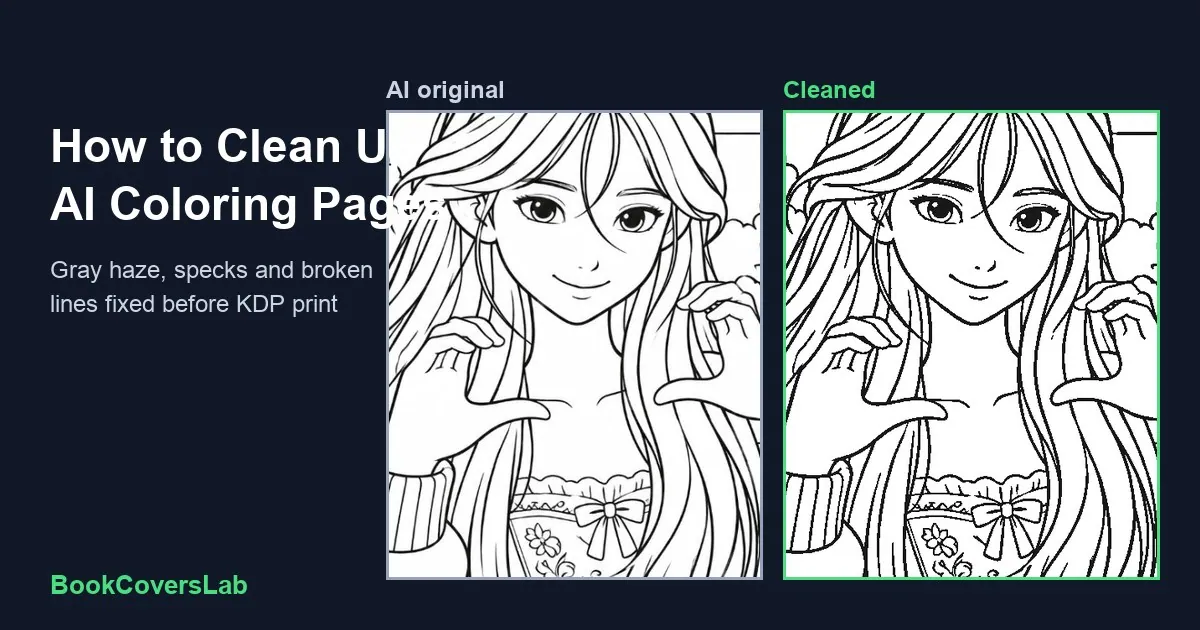
How to Clean Up AI Coloring Pages: Gray Haze, Specks and Broken Lines
To clean up AI coloring pages for print, convert every page to pure black and white, erase the specks that remain, reconnect lines that break, and only then export. In our test on two AI pages (Nov 26, 2026), 3.6% and 11.5% of the pixels were gray. After cleanup, both pages had 0% gray. One faint frame line also broke into 16 dashes, and we had to reconnect it by hand.
AI image tools draw soft, anti-aliased lines. That looks fine on screen. On a printed coloring page it shows up as gray haze, dotted edges and lines that fade out where a crayon should stop. This guide shows each problem on real pages, what fixes it and what does not.
If you have no pages yet, generate a full book with the AI Coloring Book Generator, which outputs black-and-white line art from the start. If you already have the pages, open the free coloring book formatter and follow along.
Key Takeaways
- Gray pixels are the main problem: 11.5% of one AI page was gray before cleanup and 0% after.
- Auto cleanup can create broken lines on very faint strokes. Check thin lines after you run it.
- Lowering the gray setting did not repair a faint line. A manual Reconnect stroke did: 16 dashes became one line.
- Cleanup does not add pixels. A 768 x 1024 px page is still 89 DPI on 8.5 x 11 inches.
What we tested (Nov 26, 2026)
We imported two AI-generated coloring pages into the BookCoversLab formatter on an 8.5 x 11 inch trim with bleed and ran the default Auto Repair. Then we measured the pixels before and after.
| Page | File | Gray pixels before | Gray pixels after | Gray levels before → after | Black coverage before → after | DPI at 8.5 x 11 |
|---|---|---|---|---|---|---|
| Dog (fur detail) | JPEG, 768 x 1024 px | 3.6% | 0% | 256 → 2 | 4.8% → 8.0% | 89 |
| Girl (hair + frame) | PNG, 749 x 1024 px | 11.5% | 0% | 256 → 2 | 6.1% → 16.5% | 86 |
Gray = pixel values 40–215 on a 0–255 scale. Black coverage rises after cleanup because faint gray edges become solid line. Tested 2026-11-26 with the default Auto Repair settings (Remove More Gray 44, Keep More Detail 64, Thicken Lines 12).
The pages are samples from our own generators, not from Midjourney. The cleanup problems are the same for any AI tool that draws soft lines.
Why do AI coloring pages look gray and dirty when printed?
They look gray because AI line art is anti-aliased. Each black line is surrounded by gray pixels, and many backgrounds carry a faint gray texture. Both pages in our test had all 256 gray levels before cleanup.
A printer cannot print light gray as light gray. It prints a pattern of tiny dots. On a coloring page that means:
- lines with fuzzy, dotted edges
- a faint gray cast across white areas
- shading that colorists have to color over
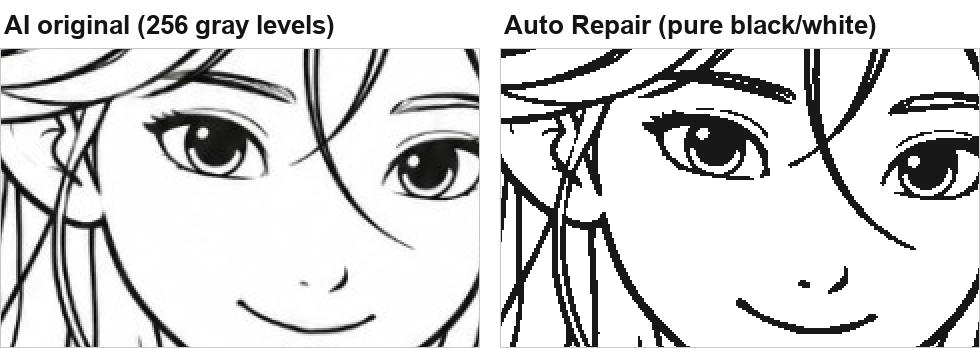
The fix is to turn the page into two values only, black and white. In the formatter this happens when you open the Make It Print-Ready step. You can drag the compare slider to check the result against the original:
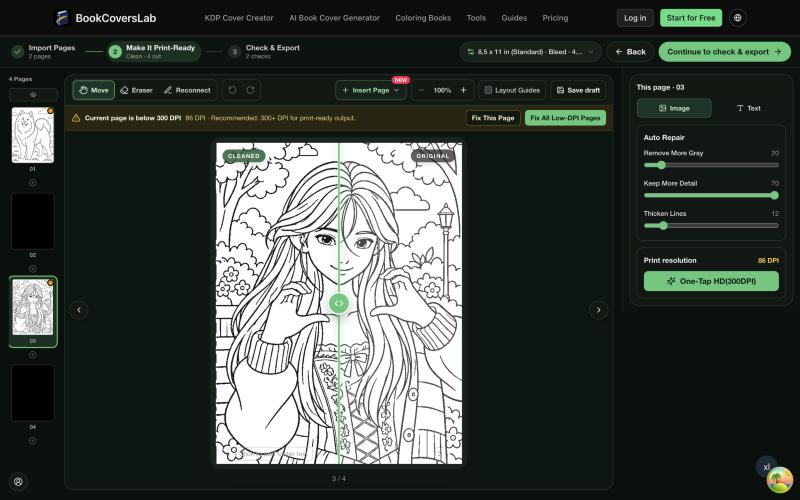
The three Auto Repair sliders control the conversion:
| Slider | What it does | When to move it |
|---|---|---|
| Remove More Gray | Sets how dark a pixel must be to stay black | Raise it if gray haze remains; lower it if fine lines vanish |
| Keep More Detail | Protects small shapes from being cleaned away | Raise it for detailed mandalas, hair and fur |
| Thicken Lines | Adds weight to every line | Raise it for kids' books and bold-and-easy pages |
How a black-ink printer turns those gray pixels into dots, with a print simulation, is in why AI coloring pages print gray.
If a page is mostly gray shading rather than line art, cleanup cannot invent the missing outlines. Regenerate that page with a prompt that asks for line art with no shading.
Can auto cleanup make broken lines worse?
Yes, and this is the most common surprise. When the cleanup decides which pixels are black, very light strokes fall below the cut-off and disappear in pieces. The line becomes a dashed line.
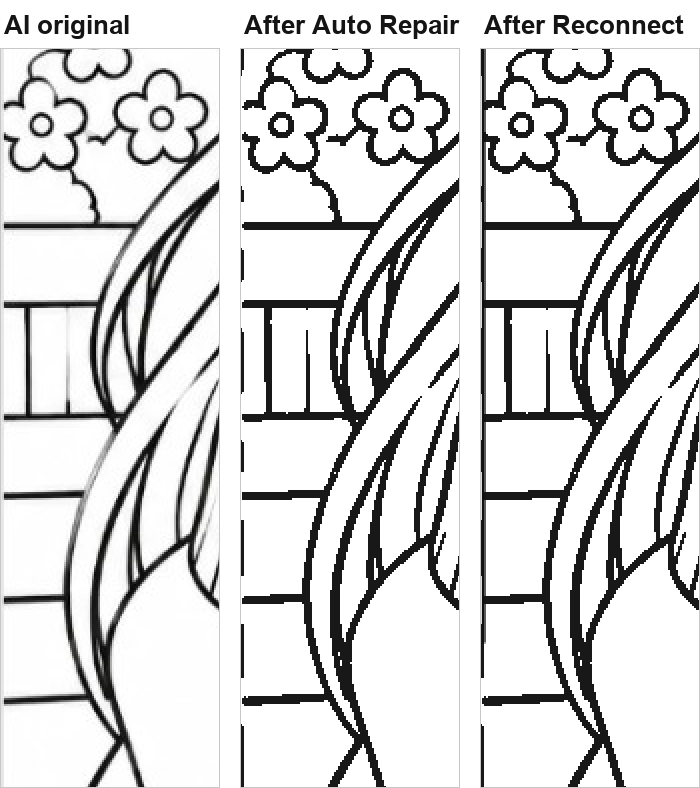
That happened on our second page. The original had a faint gray frame line down the left edge. After Auto Repair, that line had 16 separate segments between rows 440 and 800. We then set Remove More Gray to its lowest setting (20) and Keep More Detail to its highest (70). The line still had 16 segments. The sliders could not recover a stroke that was nearly white to begin with.
The same thing happens on tapered strokes. On the dog page, the thin tips of the fur strokes opened small gaps after cleanup:
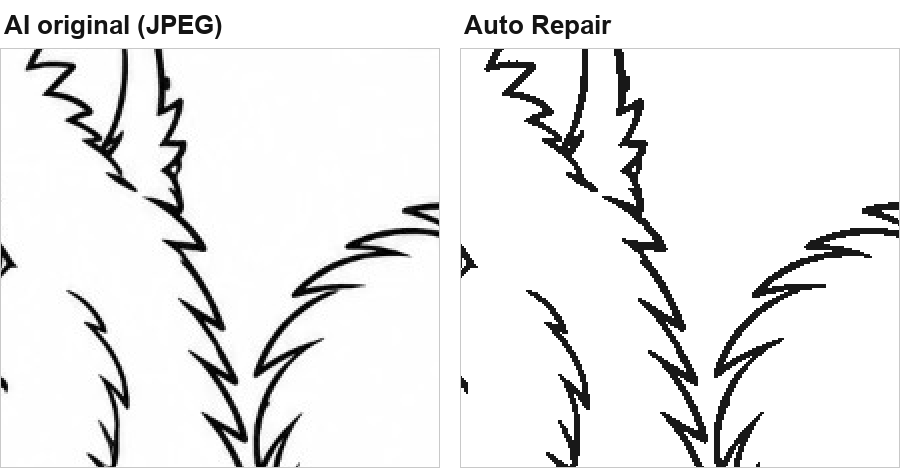
Small gaps matter on a coloring page. A gap in an outline is where a marker leaks into the next shape, and it is what buyers notice in a "look inside" preview.
How do you fix broken lines in an AI coloring page?
Draw a stroke across each gap that matches the existing line weight. In the formatter, select Reconnect (shortcut R), click where the broken line starts, then click where it should continue. The tool draws a straight black stroke between the two points. Press Esc to cancel a stroke you started by mistake.
We did this once along the dashed frame line. The 16 segments in that stretch became 3, and the line reads as one solid edge:
Tips that save time:
- Zoom in before you click. Reconnect strokes are straight, so long curved gaps need two or three short strokes.
- Set Line Thickness to match the line you are repairing.
- Fix only the gaps that matter: outlines of shapes people will color. A broken hair strand inside a filled area is not worth a click.
- Use Undo and Redo freely. Repairs are stored as edits on top of the page, and Reset Page Edits returns to the cleaned version.
How do you remove specks and stray dots?
Use the Eraser (shortcut E) and drag over specks. Hold Space to pan while you work. Specks come from JPEG compression, textured backgrounds and tiny details the AI drew that are too small to color.
Erase a speck when it sits inside an area people will color, or when it looks like a printing defect. Keep it when it is part of the design, such as eyes, stars or dots on a pattern.
Do you need thicker lines for kids' books?
Usually yes. AI line art is often drawn with thin lines that look elegant on screen but are hard for young children or older colorists to stay inside. Raise Thicken Lines on those pages; our bold and easy coloring pages test shows how far you can push it. On our girl page, black coverage went from 6.1% to 16.5% after cleanup at the default Thicken Lines setting of 12, because soft gray edges became solid line and every line gained weight.
Check two things after you thicken lines:
- small closed shapes, such as eyes or flower centers, can fill in completely
- text and numbers drawn by the AI can become hard to read
Does cleanup fix low resolution?
No. Cleanup changes tones and line weight. It does not add pixels. KDP's formatting help asks for images at 300 DPI. On an 8.5 x 11 inch page with 0.125 inch bleed, that means about 2,588 x 3,375 pixels.
Both of our test pages were far below that: 89 DPI and 86 DPI. The formatter flags this on import and again in the pre-export check:
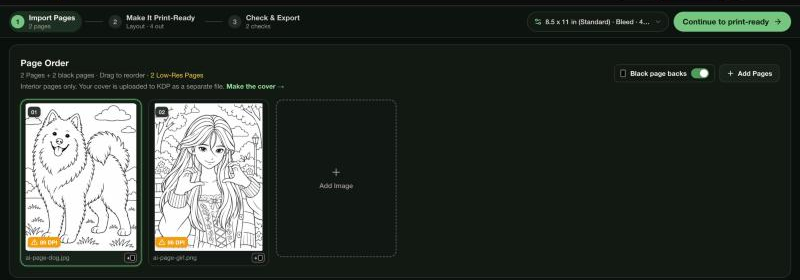
You have three options: export the art larger from the AI tool, upscale it, or replace the page. The pixel sizes for every KDP trim are in KDP image resolution for coloring books. The formatter's One-Tap HD (300 DPI) repair upscales a single page; it uses one HD credit and is part of the paid plans. If you are using Midjourney, our Midjourney coloring book guide lists the exact pixel sizes per trim.
Cleanup checklist before you export
| Check | Pass when |
|---|---|
| Gray pixels | The cleaned page shows only black and white |
| Outlines | Every shape people will color is closed |
| Specks | No dots inside colorable areas |
| Line weight | Lines match the audience (thicker for kids) |
| Resolution | 300 DPI at your trim size, or close to it |
| Page count | At least 24 pages for a black-ink KDP paperback (Print Options) |
Run a free watermarked proof from the export step and look at it at 100% zoom before you pay for the final file. Our guide on KDP print previewer errors for coloring books covers what KDP flags after upload.
Other ways to clean up AI line art
You do not need our tool to do this. Common alternatives:
- Photoshop or GIMP: Threshold or Levels converts a page to black and white, and a brush fixes gaps. This gives full control but takes several minutes per page and has to be repeated for every page.
- Illustrator Image Trace: turns raster art into vector lines with closed shapes. It works well for simple pages and can distort fine hair, fur and faces.
- Regenerate the page: if the page is mostly shading, a new prompt is faster than repair. Some all-in-one coloring book tools only offer this route. In our Nov 25, 2026 test, KDPEasy let us redraw a whole page but had no line-level editing or page import.
A dedicated formatter makes sense when you have a full book of 24 or more pages to clean, order and export as one interior PDF. For one or two pages, an image editor you already know is fine.
FAQ
Why do AI coloring pages look gray when printed?
AI images are anti-aliased: line edges and backgrounds contain hundreds of gray levels. In our test, 11.5% of the pixels on one AI page were gray (values 40–215). A printer turns those into a dotted gray haze, so the page looks dirty instead of crisp.
How do I fix broken lines in an AI coloring page?
Draw a short stroke across each gap with a line tool that matches the existing line weight. In the BookCoversLab formatter, the Reconnect tool does this with two clicks: one where the line breaks and one where it should continue.
Can auto cleanup create new broken lines?
Yes. Turning gray into pure black and white drops very faint or tapered strokes. In our test, a faint frame line became 16 separate dashes after auto cleanup. Lowering the gray setting did not bring it back, so we reconnected it by hand.
Does cleanup fix low resolution?
No. Cleanup changes tones and line weight, not pixel count. A 768 x 1024 px page is about 89 DPI on an 8.5 x 11 inch KDP page with bleed. You still need to upscale it or replace it to reach 300 DPI.
Is it free to clean up pages in BookCoversLab?
Importing pages, Auto Repair, Eraser, Reconnect and a watermarked proof PDF are free in the coloring book formatter. The final KDP-ready export and 300 DPI HD repair need a paid plan.
Related resources
- Coloring book formatter: import pages, clean them and export a KDP interior PDF
- AI Coloring Book Generator: generate a full book of black-and-white pages
- Midjourney coloring book to KDP PDF: prompts, pixel sizes and the export workflow
- How to format a coloring book for KDP: trim, page order and blank backs
- Coloring book bleed and margins for KDP
Autor

Kategorie
Więcej wpisów
Najlepszy generator książek do kolorowania AI 2026: które narzędzia naprawdę pomagają opublikować w KDP?
Porównaj najlepszy generator książek do kolorowania AI 2026. Zobacz, które kończą na PNG, a które dają PDF wnętrza KDP gotowy do druku.
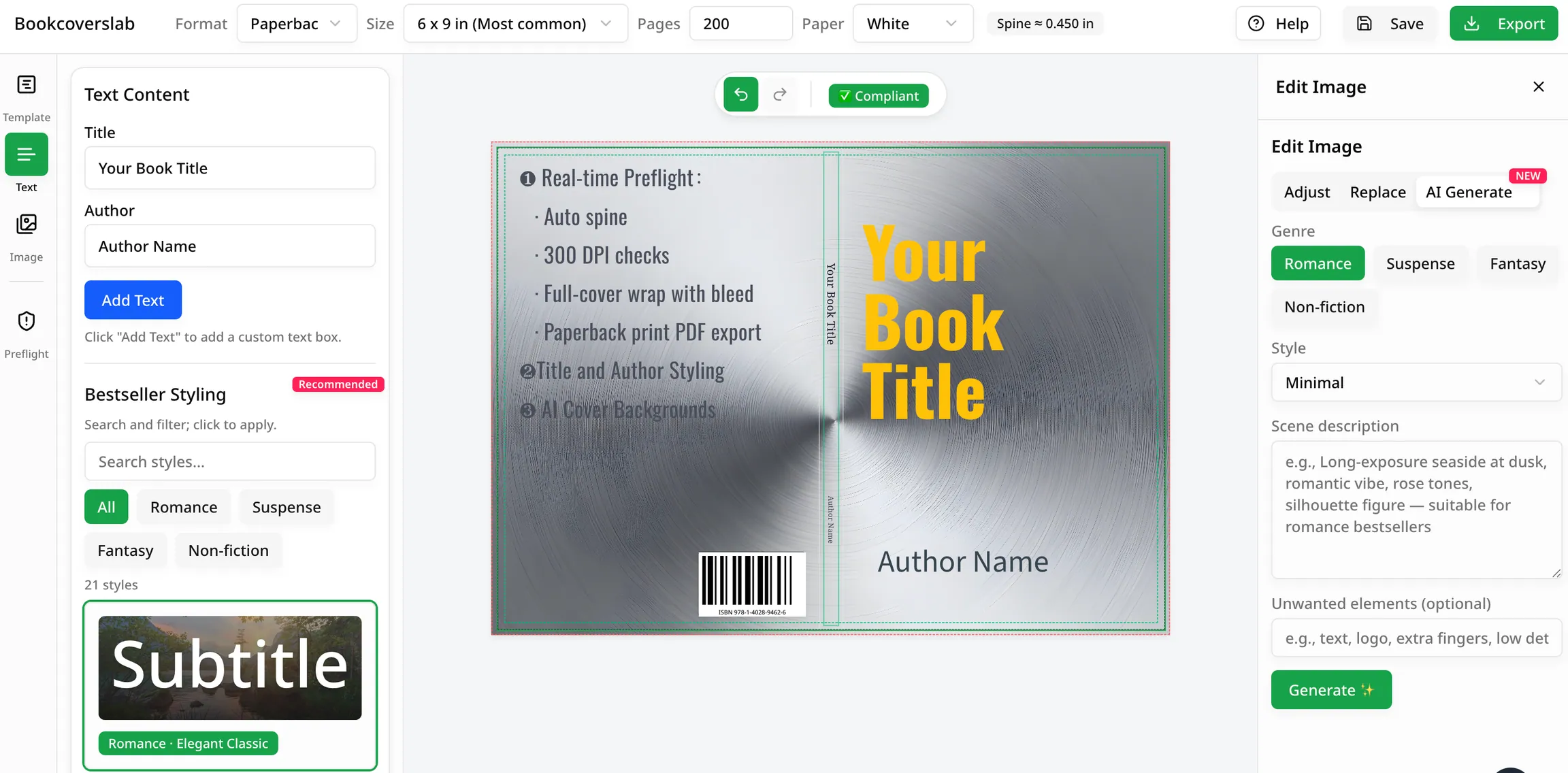
Najlepsze bezpłatne generatory okładek książek AI w 2026 r
Porównaj najlepsze bezpłatne generatory okładek książek AI dla autorów w 2026 r. Zobacz, które narzędzia są najlepsze pod względem pomysłów, dopasowania gatunkowego i przepływów pracy gotowych do KDP, w tym BookCoversLab.
Can You Sell AI Coloring Books on Amazon? What KDP's Rules Actually Say
Yes, if you disclose AI images, own the rights and meet KDP's quality rules. KDP's exact wording, the 24-page minimum and the 2-titles-a-week limit.
Newsletter
Dołącz do społeczności
Zapisz się do naszego newslettera, aby otrzymywać najnowsze wiadomości i aktualizacje