
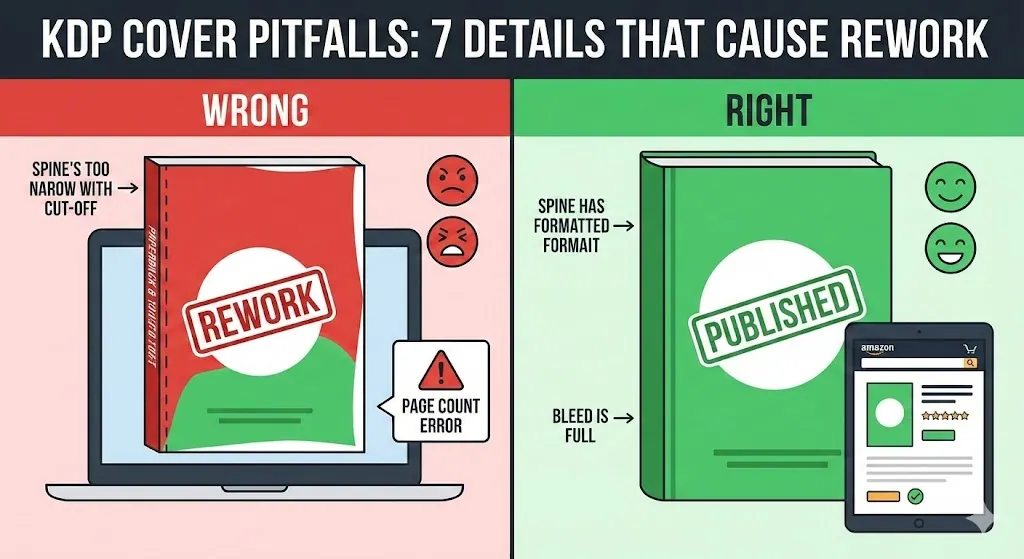
Valkuilen van KDP Cover: 7 details die tot herbewerking leiden (aantal pagina's, rug, afloop)
Als je voor de eerste keer op Amazon KDP publiceert, is je grootste tijdbesteding meestal niet creativiteit, maar rework. Een KDP-omslag die er "goed" uitziet in Canva/Photoshop kan nog steeds mislukken omdat een getal is gewijzigd (aantal pagina's), een vak is gemist (afloop) of een gebied is genegeerd (streepjescode).
In deze handleiding worden de 7 KDP-valkuilen beschreven die meestal leiden tot afwijzing, verkeerde uitlijning of het verrassende bericht 'uw bestand heeft de verkeerde grootte'. Hierbij wordt gebruik gemaakt van een eenvoudig patroon dat u opnieuw kunt gebruiken: Symptoom → Waarom → Voorkomen → Snelle controle.
Heeft u haast? Controleer eerst uw exacte omslagformaat en preflight vervolgens uw export voordat u deze uploadt.
Eén wijziging in het aantal pagina's kan de rugbreedte en de volledige omslagafmetingen ongeldig maken.
Ten eerste: 3 concepten die 90% van de KDP-omslagproblemen voorkomen
- Afsnijdgrootte ≠ volledige omslagomslag. De bijsnijding is alleen de voorkant (bijvoorbeeld 6×9). Een gedrukt KDP-omslagbestand is de volledige omslag: achterkant + rug + voorkant plus afloop.
- Afloop ≠ veilige zone. Afloop is een extra achtergrond voorbij de snijlijn. Veilige zones zijn de ‘houd tekst/logo hier weg'-gebieden.
- Het aantal pagina's verandert alles. Als uw interne PDF verandert van 180 pagina's naar 174 pagina's (ja, zelfs als u 6 blanco pagina's verwijdert), verandert uw rugbreedte, en dat geldt ook voor uw volledige KDP-omslagformaat.
Snelle herwerkingskaart (bewaar deze tabel)
| KDP-dekkingsvalkuil | Wat kapot gaat | Snelle oplossing |
|---|---|---|
| Paginatelling gewijzigd na omslagontwerp | Rugbreedte + totale omslaggrootte | Herbereken met het uiteindelijke aantal pagina's |
| Alleen ontworpen in trimformaat | Verkeerd PDF-paginaformaat | Gebruik een sjabloon met volledige omslag (achterkant + rug + voorkant + afloop) |
| Veilige zones genegeerd | Tekst/logo verwijderd | Tekst naar binnen trekken; gebruik gidsen/veilige zones |
| Streepjescode niet gepland | Streepjescode omvat inhoud | Laat een schoon streepjescodegebied achter op de achterkant |
| Verkeerde rekenmachine-invoer/afronding | "Bijna goed" mislukt nog steeds | Controleer het papiertype, de binding, de eenheden en de exacte decimalen nogmaals |
| Problemen met het exporteren van PDF-bestanden | KDP markeert lettertypen/afvlakking/kleur | Een afdrukklare PDF exporteren (lettertypen insluiten, afvlakken) |
| Lage resolutie / schaling | Wazige afdruk, gepixeleerde tekst | Gebruik 300 DPI-items op eindformaat; tekstvector behouden |
Valkuil #1: het aantal pagina's (metadata) is gewijzigd, maar uw KDP-omslag niet
Symptoom
- Uw KDP-omslagbestand wordt afgewezen vanwege 'verkeerde grootte', of de tekst op de rug verschuift uit het midden.
- Het afdrukvoorbeeld vertoont onverwachte witruimte, uitknippingen of verkeerde uitlijning.
Waarom het gebeurt
- Je interieur is de enige bron van waarheid. Als u pagina's verwijdert/toevoegt (veelvoorkomend voorbeeld: zes blanco pagina's aan het einde verwijderen), verandert de rugbreedte. Als uw omslagsjabloon nog steeds het oude aantal pagina's gebruikt, is uw KDP-omslagformaat nu verkeerd.
Hoe u dit kunt voorkomen
- Maak uw KDP-omslag pas 'voltooid' als het aantal binnenpagina's stabiel is.
- Telkens wanneer het interieur verandert, voert u deze stap opnieuw uit: omslaggrootte opnieuw berekenen → sjabloon bijwerken → opnieuw exporteren.
Snelle controle vóór uploaden
- Vergelijk het aantal pagina's dat u in uw rekenmachine hebt gebruikt met het uiteindelijke aantal interne PDF-pagina's.
- Voer de exacte specificaties opnieuw uit in de rekenmachine: snijformaat + papiersoort + aantal uiteindelijke pagina's.
Valkuil #2: Je hebt alleen de voorkant ontworpen (snijformaat), niet de volledige KDP-omslagomslag
Symptoom
- "Je omslagbestand heeft de verkeerde maat", ook al heb je 6×9 (of je snijgrootte) ingesteld in je ontwerptool.
Waarom het gebeurt
- Veel ontwerptools beginnen met een canvas van één pagina (vooromslag). KDP heeft een volledig omslag-bestand nodig: achterkant + rug + voorkant, plus afloop.
Hoe u dit kunt voorkomen
- Bouw de KDP-omslag altijd op op basis van een sjabloon die al het juiste volledige omslagformaat bevat.
Snelle controle vóór uploaden
- Open uw geëxporteerde PDF en controleer of het paginaformaat overeenkomt met de berekende afmetingen van de volledige omslag (niet alleen het snijformaat).
Valkuil #3: Uw veilige zones/marges zijn te krap (tekst dichtbij de rand)
Symptoom
- KDP-omslagvoorbeeld ziet er "bijna goed" uit, maar de tekst ligt ongemakkelijk dicht bij de snijlijn, of wordt bijgesneden na het afdrukken.
Waarom het gebeurt
- Voor het snijden van afdrukken gelden toleranties. Tekst die te dicht bij de snij-/vouwlijnen ligt, is riskant, zelfs als deze een automatische controle doorstaat.
Hoe u dit kunt voorkomen
- Bewaar alle kritische tekst-/logo-elementen binnen veilige zones.
- Behandel de wervelkolom als een gebied met een hoog risico: kleine verschuivingen zijn daar beter merkbaar.
Snelle controle vóór uploaden
- Zoom in op het voorbeeld en kijk naar: centrering van de rugtekst + boven-/ondermarges + eventuele dunne randen.
Valkuil nr. 4: Je hebt het streepjescodegebied niet gepland (dus heeft KDP dit bovenop je ontwerp geplaatst)
Symptoom
- Er verschijnt een streepjescode op je achteromslag en bedekt je tekst, logo of afbeelding.
Waarom dit gebeurt
- Als je geen scanbare streepjescode opgeeft, kan KDP er een genereren en plaatsen. Als uw achteromslag 'bezet' is, kan de streepjescode nergens heen.
Hoe u dit kunt voorkomen
- Laat een schoon gebied op de achteromslag achter (meestal het gedeelte rechtsonder) zonder kritische inhoud.
Snelle controle vóór uploaden
- Controleer in het afdrukvoorbeeld of de streepjescode geen tekst of belangrijke afbeeldingen overlapt.
Valkuil #5: Verkeerde invoer (of afronding) in uw KDP-omslagcalculator
Symptoom
- Uw KDP-omslag wijkt een klein beetje af, maar het uploaden mislukt nog steeds of de uitlijning van de ruggengraat is enigszins verkeerd.
Waarom dit gebeurt
- Het omslagformaat is afhankelijk van invoer die mensen per ongeluk ‘raden':
- inbindtype (paperback versus hardcover)
- papiertype/kleur (wit versus crème)
- eenheden (in versus mm)
- afronding (met "0,34 in" terwijl de rekenmachine "0,343 in" gaf)
Hoe u dit kunt voorkomen
- Kopieer exacte rekenmachine-uitvoer. Rond het niet af tenzij u weet dat het veilig is voor uw workflow.
Snelle controle vóór uploaden
- Bevestig dat elke invoer overeenkomt met uw boekinstellingen: bijsnijden, inbinden, papier, aantal pagina's.
Valkuil #6: uw afgedrukte PDF-export is niet afdrukklaar (lettertypen/afvlakking/kleur)
Symptoom
- KDP wijst het bestand af om technische redenen (lettertypen, transparantie, kleurruimte) of elementen worden onjuist weergegeven in het voorbeeld.
Waarom dit gebeurt
- Afgedrukte PDF's zijn streng. Problemen komen vaak voort uit:
- lettertypen niet ingesloten
- transparantie/lagen niet goed afgevlakt
- onbedoelde downsampling/compressie
- onverwachte kleurconversies
Hoe dit te voorkomen
- Exporteren met afdrukinstellingen die lettertypen insluiten en afvlakken effecten. Als u de optie ‘print/PDF/X' heeft, is dit meestal veiliger dan een generieke PDF-export.
Snelle controle vóór uploaden
- Open uw geëxporteerde PDF opnieuw met een zoomfactor van 200–400% en controleer of de tekstranden scherp zijn en de effecten correct worden weergegeven.
Valkuil #7: Lage resolutie of 'opgeschaalde' middelen zorgen ervoor dat uw KDP-omslag er wazig uitziet
Symptoom
- De KDP-omslag ziet er scherp uit op het scherm, maar wordt wazig afgedrukt of de tekst ziet er korrelig uit.
Waarom het gebeurt
- Afbeeldingen met een lage resolutie, schermafbeeldingen of opgeschaalde items houden niet stand als ze worden afgedrukt. Bovendien rasteren sommige workflows tekst onbedoeld.
Hoe u dit kunt voorkomen
- Gebruik afbeeldingen met een afdrukformaat en zorg ervoor dat u ze niet groter maakt dan de oorspronkelijke resolutie.
- Houd tekst waar mogelijk als vector.
Snelle controle vóór uploaden
- Inspecteer uw export met een zoomfactor van 100%–200%. Als het daar zacht is, zal het bij het afdrukken slechter zijn.
De checklist '10 minuten vóór het uploaden' (kopiëren/plakken)
- Het interieur is definitief: het snijformaat, het papiertype en het aantal pagina's zullen niet meer veranderen.
- Het KDP-omslagformaat is opnieuw berekend op basis van de definitieve specificaties (geen gok, geen afrondingsverrassingen).
- Bestand is een volledige omslag (achterkant + rug + voorkant) met afloop waar nodig.
- Achtergronden lopen uit in afloop; geen witte splinters aan de randen.
- Titel/auteur/logo bevinden zich in veilige zones (vooral op de rug).
- Het streepjescodegebied is vrij (of de door u opgegeven streepjescode is veilig geplaatst).
- Export is printklaar (lettertypen ingesloten, effecten afgevlakt, geen zware downsampling).
- Afdrukvoorbeeld ziet er correct uit: rug gecentreerd, geen uitsnede, geen onverwachte marges.
Wil je KDP-coverfouten ontdekken voordat KDP dat doet? Begin met exacte afmetingen en preflight vervolgens uw export.
Veelgestelde vragen
Moet ik mijn KDP-omslag echt opnieuw maken als ik lege pagina's heb verwijderd? Ja. Door pagina's te verwijderen of toe te voegen, wordt de rugbreedte en het volledige formaat van de KDP-omslagomslag gewijzigd. Bereken opnieuw met het definitieve aantal pagina's en exporteer opnieuw.
Wanneer moet ik beginnen met het ontwerpen van mijn KDP-omslag? Idealiter nadat uw interieurindeling stabiel is (bijsnijden + marges + aantal pagina's). Als u vroeg ontwerpt, bent u van plan de sjabloon later opnieuw uit te voeren.
Hebben e-boeken afloop en rug nodig? Nee. E-boeken gebruiken een afbeelding op de voorkant (meestal JPEG). Afloop en rug zijn van toepassing op printomslagbestanden.
Wat is de snelste manier om te voorkomen dat KDP-omslagen opnieuw moeten worden bewerkt? Gebruik een rekenmachine/sjabloon voor exacte afmetingen, houd tekst binnen veilige zones, reserveer het streepjescodegebied, exporteer afdrukklare bestanden en preflight voordat u uploadt.
Kan ik mijn KDP-omslag ontwerpen in Canva? Dat kan, maar de meest voorkomende fout is het gebruik van het snijformaat in plaats van het volledige omslagformaat. Gebruik eerst een exact full-wrap-sjabloon en ontwerp er vervolgens in.
Auteur

Categorieën
Meer berichten
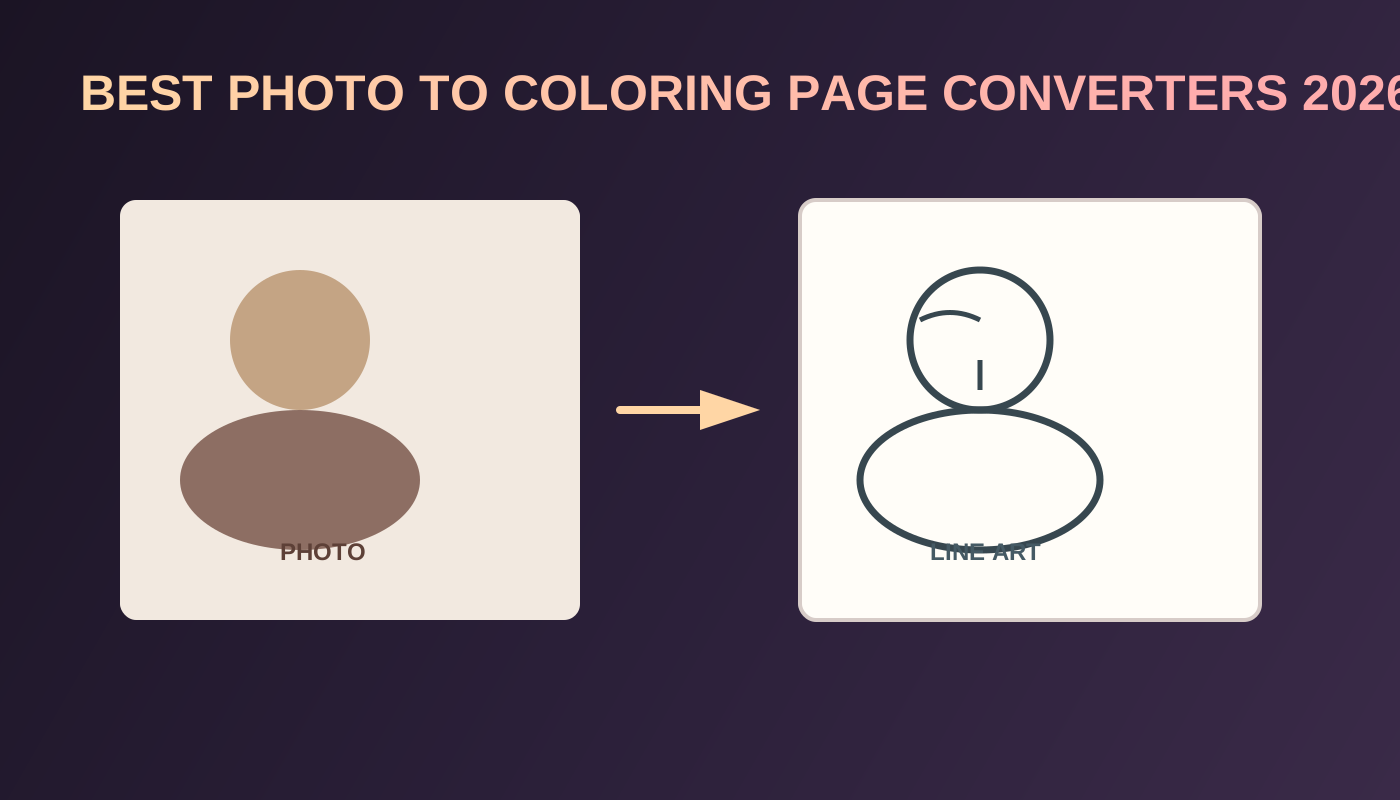
7 Best Photo to Coloring Page Converters in 2026
Compare the best photo to coloring page converters in 2026 for printable line art, pet and family keepers, and the path into a KDP coloring book.
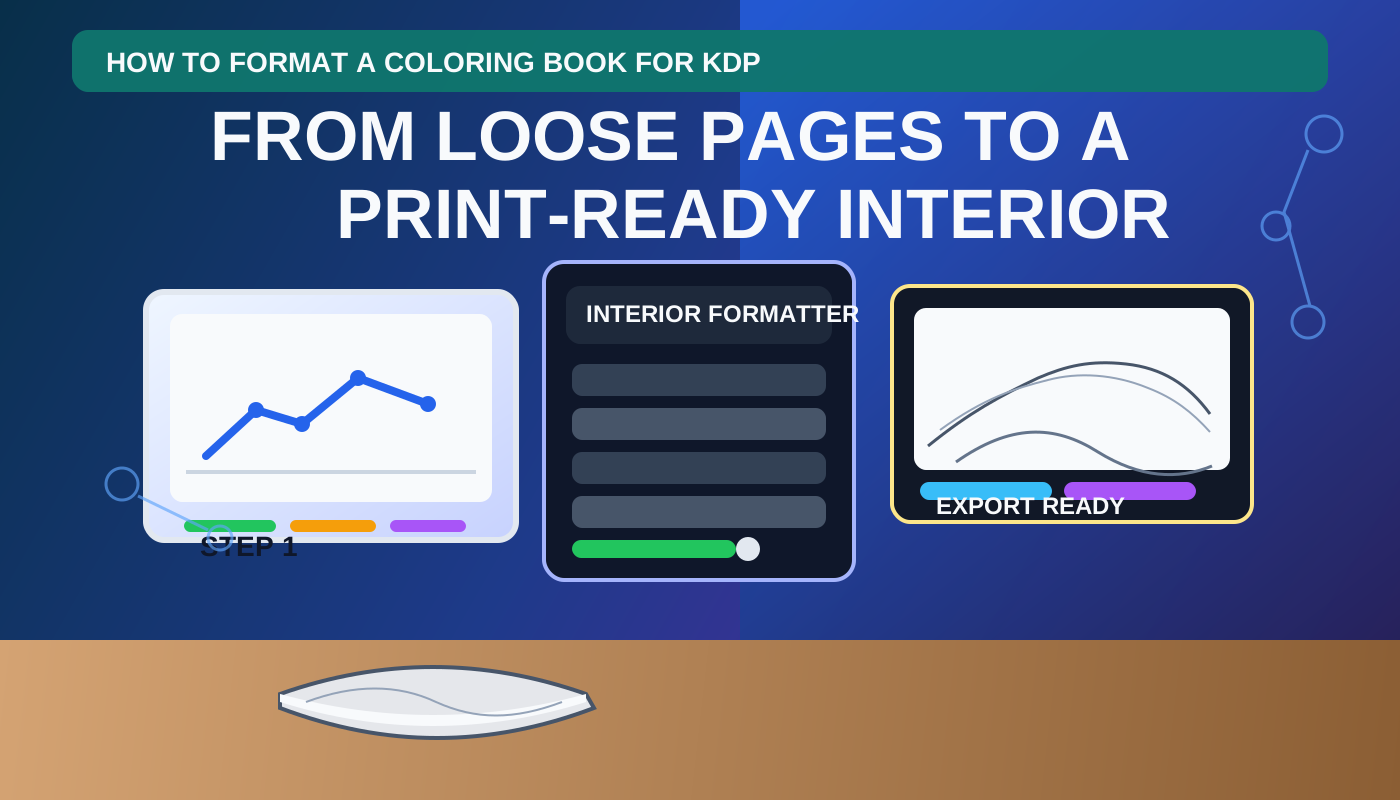
Coloring Book Bleed and Margins for KDP: What Actually Matters
Learn how bleed and margins work for KDP coloring books. Decide when full bleed makes sense, how much safe space line art needs, and how to avoid cramped or risky interior pages.
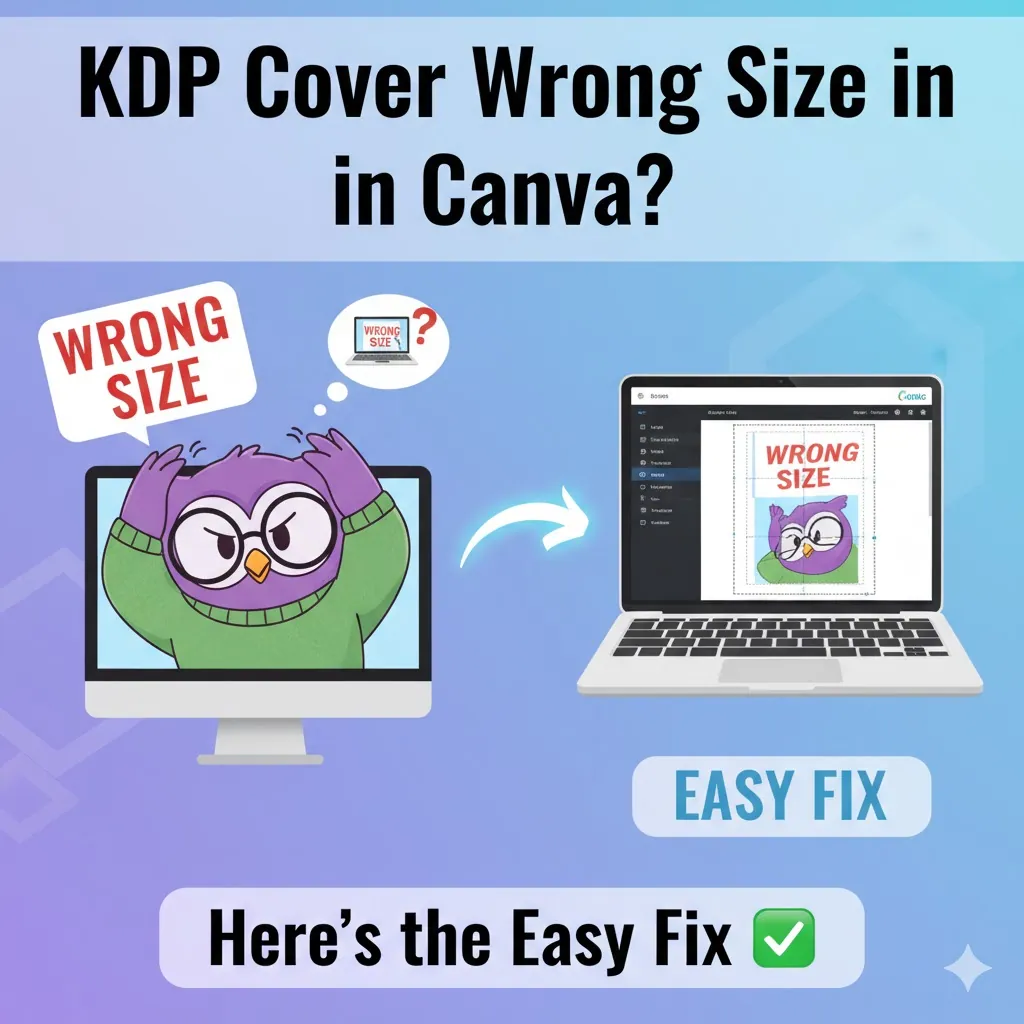
KDP-omslag verkeerde maat in Canva? Hier is de eenvoudige oplossing
KDP-afwijzingsfouten? Ontdek waarom je Canva-boekomslag steeds het verkeerde formaat krijgt voor KDP (het is de rug en de afloop!) en ontdek de eenvoudige, foutloze oplossing.
Nieuwsbrief
Word onderdeel van de community
Abonneer je op onze nieuwsbrief voor het laatste nieuws en updates