
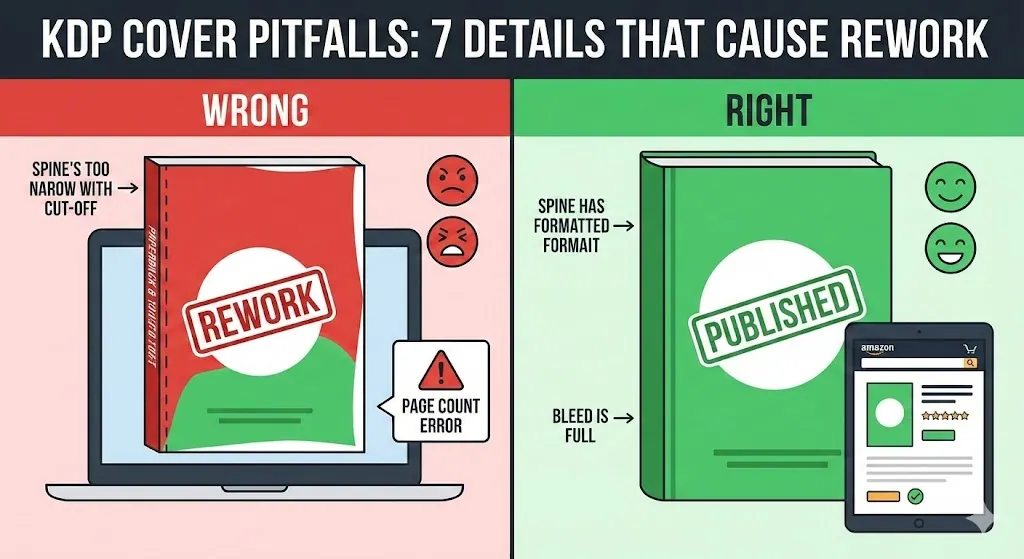
Armadilhas da capa do KDP: 7 detalhes que causam retrabalho (contagem de páginas, lombada, sangramento)
Se você está publicando no Amazon KDP pela primeira vez, sua maior perda de tempo geralmente não é a criatividade, mas sim o retrabalho. Uma capa KDP que parece "boa" no Canva/Photoshop ainda pode falhar porque um número foi alterado (contagem de páginas), uma caixa foi perdida (sangramento) ou uma área foi ignorada (código de barras).
Este guia detalha 7 armadilhas da cobertura do KDP que na maioria das vezes levam à rejeição, desalinhamento ou uma mensagem surpresa "seu arquivo tem o tamanho errado" — usando um padrão simples que você pode reutilizar: Sintoma → Por quê → Prevenir → Verificação rápida.
Está com pressa? Verifique primeiro o tamanho exato da capa e, em seguida, teste a exportação antes de fazer o upload.
Uma alteração na contagem de páginas pode invalidar a largura da lombada e as dimensões completas da embalagem.
Primeiro: 3 conceitos que evitam 90% dos problemas de capa KDP
- Tamanho do corte ≠ envoltório completo da capa. O corte é apenas a frente (por exemplo, 6×9). Um arquivo de capa KDP impresso é o envoltório completo: verso + lombada + frente mais sangramento.
- Sangramento ≠ zona segura. Sangria é o fundo extra além da linha de corte. Zonas seguras são as áreas "mantenha texto/logotipo longe daqui".
- A contagem de páginas muda tudo. Se o seu PDF interno mudar de 180 para 174 páginas (sim, mesmo removendo 6 páginas em branco), a largura da lombada muda — e o mesmo acontece com o tamanho completo da capa do KDP.
Mapa de retrabalho rápido (salve esta tabela)
| Armadilha da cobertura do KDP | O que quebra | Correção rápida |
|---|---|---|
| Contagem de páginas alterada após o design da capa | Largura da lombada + tamanho total do envoltório | Recalcular com a contagem final de páginas |
| Projetado apenas no tamanho de acabamento | Tamanho de página PDF incorreto | Use um modelo de envoltório completo (traseira + lombada + frente + sangramento) |
| Zonas seguras ignoradas | Texto/logotipo cortado | Puxe o texto para dentro; use guias/zonas seguras |
| Código de barras não planejado | Código de barras cobre conteúdo | Deixe uma área de código de barras limpa no verso |
| Entradas/arredondamentos incorretos da calculadora | "Quase certo" ainda falha | Verifique novamente o tipo de papel, encadernação, unidades, decimais exatos |
| Problemas de exportação de impressão de PDF | KDP sinaliza fontes/achatamento/cor | Exportar um PDF pronto para impressão (incorporar fontes, nivelar) |
| Baixa resolução/escala | Impressão desfocada, texto pixelizado | Use recursos de 300 DPI no tamanho final; manter vetor de texto |
Armadilha nº 1: contagem de páginas (metadados) alterada, mas sua capa KDP não mudou
Sintoma
- Seu arquivo de capa KDP é rejeitado por "tamanho errado" ou o texto da lombada muda de centro.
- A visualização da impressão mostra espaços em branco inesperados, cortes ou desalinhamentos.
Por que isso acontece
- Seu interior é a única fonte da verdade. Se você excluir/adicionar páginas (exemplo comum: remover 6 páginas em branco no final), a largura da lombada será alterada. Se o seu modelo de capa ainda usa a contagem de páginas antiga, o tamanho da capa do KDP agora está errado.
Como evitar isso
- Não "finalize" sua capa KDP até que a contagem de páginas internas esteja estável.
- Sempre que o interior mudar, refaça esta etapa: recalcular o tamanho da capa → atualizar modelo → reexportar.
Verificação rápida antes do upload
- Compare a contagem de páginas que você usou em sua calculadora com a contagem final de páginas do PDF interno.
- Execute novamente as especificações exatas na calculadora: tamanho final + tipo de papel + contagem final de páginas.
Armadilha nº 2: você projetou apenas a frente (tamanho do acabamento), não o envoltório completo da capa KDP
Sintoma
- "Seu arquivo de capa tem o tamanho errado", mesmo que você defina 6 × 9 (ou seu tamanho de acabamento) em sua ferramenta de design.
Por que isso acontece
- Muitas ferramentas de design começam com uma tela de página única (capa). O KDP precisa de um arquivo completo: verso + lombada + frente, mais sangramento.
Como evitar isso
- Sempre construa a capa KDP a partir de um modelo que já inclua o tamanho correto do envoltório completo.
Verificação rápida antes do upload
- Abra o PDF exportado e verifique se o tamanho da página corresponde às dimensões calculadas do contorno total (não apenas ao tamanho final).
Armadilha nº 3: suas zonas/margens seguras estão muito apertadas (texto próximo à borda)
Sintoma
- A visualização da capa do KDP parece "quase boa", mas o texto fica desconfortavelmente próximo da linha de corte - ou fica cortado após a impressão.
Por que isso acontece
- O corte de impressão tem tolerâncias. Texto muito próximo das linhas de corte/dobra é arriscado, mesmo que passe por uma verificação automática.
Como evitar isso
- Mantenha todos os elementos críticos de texto/logotipo dentro de zonas seguras.
- Trate a coluna como uma área de alto risco: pequenas alterações são mais perceptíveis ali.
Verificação rápida antes do upload
- Amplie a visualização e observe: centralização do texto na lombada + margens superior/inferior + quaisquer bordas finas.
Armadilha nº 4: você não planejou a área do código de barras (então o KDP a colocou no topo do seu design)
Sintoma
- Um código de barras aparece na contracapa e cobre sua sinopse, logotipo ou imagem.
Por que isso acontece
- Se você não fornecer um código de barras que possa ser lido, o KDP poderá gerar e colocar um. Se a contracapa estiver "ocupada", o código de barras não terá para onde ir.
Como evitar isso
- Deixe uma área limpa na contracapa (normalmente a região inferior direita) sem conteúdo crítico.
Verificação rápida antes do upload
- Na visualização de impressão, confirme se o código de barras não se sobrepõe a nenhum texto ou gráfico importante.
Armadilha nº 5: entradas erradas (ou arredondamentos) em sua calculadora de capa KDP
Sintoma
- Sua capa KDP está um pouco errada, mas o upload ainda falha ou o alinhamento da lombada está ligeiramente errado.
Por que isso acontece
- O tamanho da capa depende de informações que as pessoas acidentalmente "adivinham":
- tipo de encadernação (brochura vs capa dura)
- tipo/cor de papel (branco vs creme)
- unidades (em vs mm)
- arredondamento (usando "0,34 in" quando a calculadora deu "0,343 pol")
Como evitar isso
- Copie os resultados exatos da calculadora. Não faça a volta a menos que saiba que é seguro para o seu fluxo de trabalho.
Verificação rápida antes do upload
- Confirme se cada entrada corresponde à configuração do seu livro: corte, encadernação, papel, contagem de páginas.
Armadilha nº 6: sua exportação de PDF para impressão não está pronta para impressão (fontes/nivelamento/cor)
Sintoma
- O KDP rejeita o arquivo por motivos técnicos (fontes, transparência, espaço de cores) ou os elementos são renderizados incorretamente na visualização.
Por que isso acontece
- Imprimir PDFs é rigoroso. Os problemas geralmente vêm de:
- fontes não incorporadas
- transparência/camadas não niveladas corretamente
- redução/compactação acidental
- conversões de cores inesperadas
Como evitar isso
- Exportar com configurações de impressão que incorporam fontes e nivelam efeitos. Se você tiver a opção "imprimir/PDF/X", geralmente é mais seguro do que uma exportação genérica de PDF.
Verificação rápida antes do upload
- Reabra o PDF exportado com zoom de 200–400% e verifique se as bordas do texto estão nítidas e se os efeitos são renderizados corretamente.
Armadilha nº 7: baixa resolução ou recursos "ampliados" fazem com que sua capa do KDP pareça desfocada
Sintoma
- A capa do KDP parece nítida na tela, mas a impressão fica borrada ou o texto parece pixelado.
Por que isso acontece
- Imagens de baixa resolução, capturas de tela ou recursos ampliados não resistem à impressão. Além disso, alguns fluxos de trabalho rasterizam o texto involuntariamente.
Como evitar isso
- Use imagens dimensionadas para impressão e evite ampliá-las além de sua resolução nativa.
- Mantenha o texto como vetor sempre que possível.
Verificação rápida antes do upload
- Inspecione sua exportação com zoom de 100% a 200%. Se for suave ali, será pior na impressão.
Lista de verificação "10 minutos antes do upload" (copiar/colar)
- O interior é definitivo: o tamanho do acabamento, o tipo de papel e a contagem de páginas não serão alterados novamente.
- O tamanho da capa KDP foi recalculado usando as especificações finais (sem suposições, sem surpresas de arredondamento).
- O arquivo é um envoltório completo (traseira + lombada + frente) com sangramento quando necessário.
- Os planos de fundo se estendem até o sangramento; sem lascas brancas nas bordas.
- Título/autor/logotipo estão dentro de zonas seguras (especialmente na lombada).
- A área do código de barras está limpa (ou o código de barras fornecido está colocado com segurança).
- A exportação está pronta para impressão (fontes incorporadas, efeitos nivelados, sem redução de resolução pesada).
- A visualização da impressão parece correta: lombada centralizada, sem recorte, sem margens inesperadas.
Quer detectar erros de capa do KDP antes que o KDP o faça? Comece com as dimensões exatas e, em seguida, faça um pré-implante da sua exportação.
Perguntas frequentes
Eu realmente preciso refazer minha capa KDP se eu remover páginas em branco? Sim. Remover ou adicionar páginas altera a largura da lombada e o tamanho total da capa KDP. Recalcular com a contagem final de páginas e reexportar.
Quando devo começar a projetar minha capa KDP? Idealmente, depois que seu layout interno estiver estável (corte + margens + contagem de páginas). Se você projetar cedo, planeje refazer o modelo mais tarde.
Os e-books precisam de margens e lombada? Não. Os e-books usam uma imagem de capa frontal (geralmente JPEG). Sangramento e lombada se aplicam a arquivos de impressão.
Qual é a maneira mais rápida de evitar o retrabalho da capa do KDP? Use uma calculadora/modelo para dimensões exatas, mantenha o texto dentro de zonas seguras, reserve a área do código de barras, exporte arquivos prontos para impressão e faça uma pré-impressão antes de enviar.
Posso criar minha capa KDP no Canva? Você pode, mas a falha mais comum é usar o tamanho final em vez do tamanho total da embalagem. Use primeiro um modelo completo e exato e depois desenhe dentro dele.
Autor

Categorias
Mais posts

How to Make a Coloring Book for KDP with AI: A 2026 Step-by-Step Guide
Make a KDP coloring book with AI: lock trim size, generate line-art pages, add blank backs, check 300 DPI, export an interior PDF, then upload with AI disclosure.
Melhor gerador de livro de colorir com IA 2026: quais ferramentas realmente ajudam a publicar no KDP?
Compare o melhor gerador de livro de colorir com IA 2026. Veja quais param em páginas PNG e quais ajudam a exportar um PDF interior KDP pronto para impressão.

7 Best AI Coloring Page Generators in 2026 (Printable PNG First)
Compare the best AI coloring page generators in 2026 for printable line-art PNGs, KDP trim sizes, and the handoff into a full coloring book workflow.
Newsletter
Junte-se à comunidade
Assine nossa newsletter para receber as últimas novidades e atualizações